
zappzy Support Center > Content > Posts: See all posts in one list, filter by status, sort fast, and update on the spot

Video or step-by-step guide with screenshots. Your choice. Pick, follow, done.
Step-by-step guide
Once you're logged in to zappzy, you'll see the Content section. Click on Posts below.
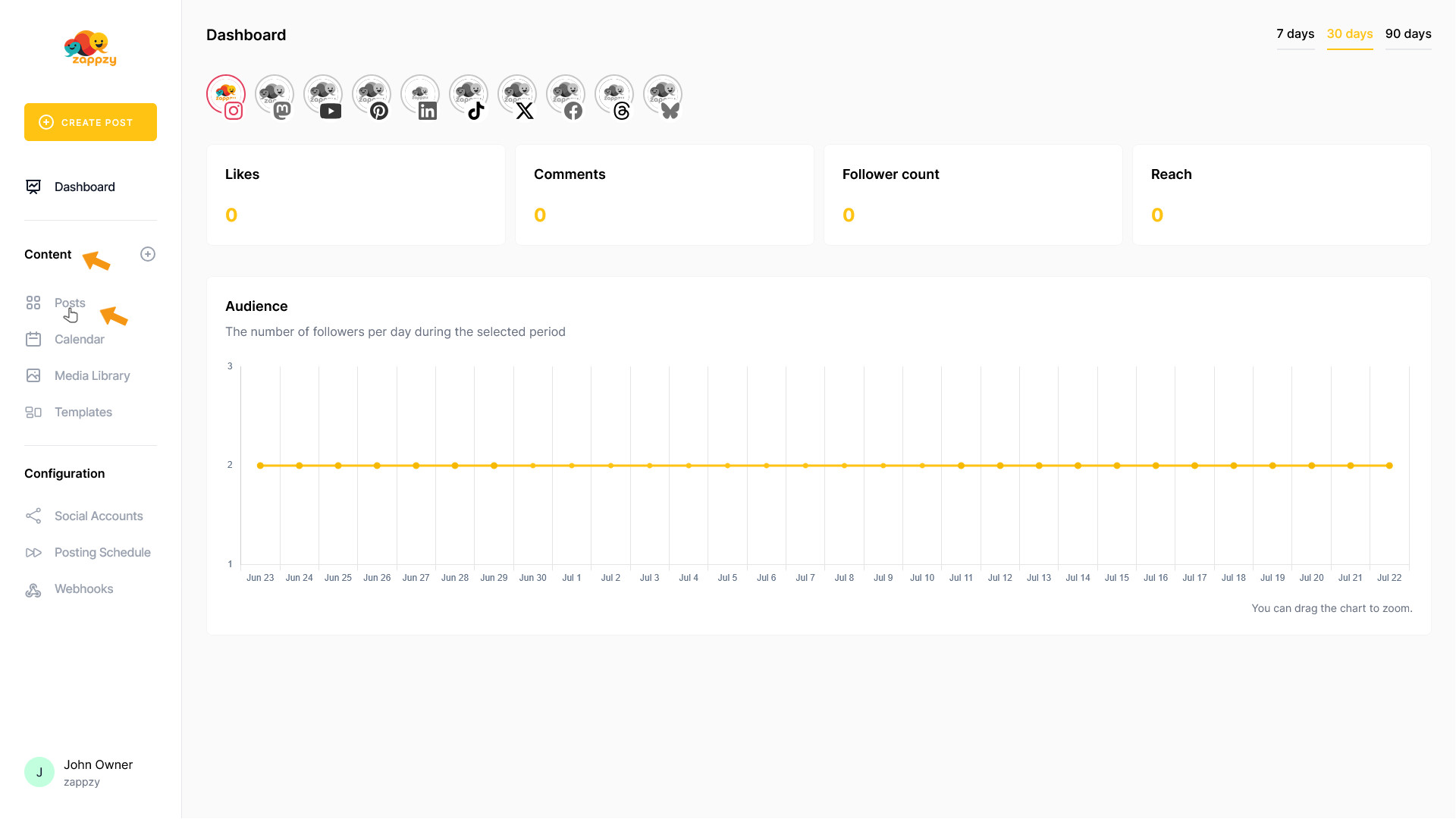
The Posts overview will appear on your main screen.
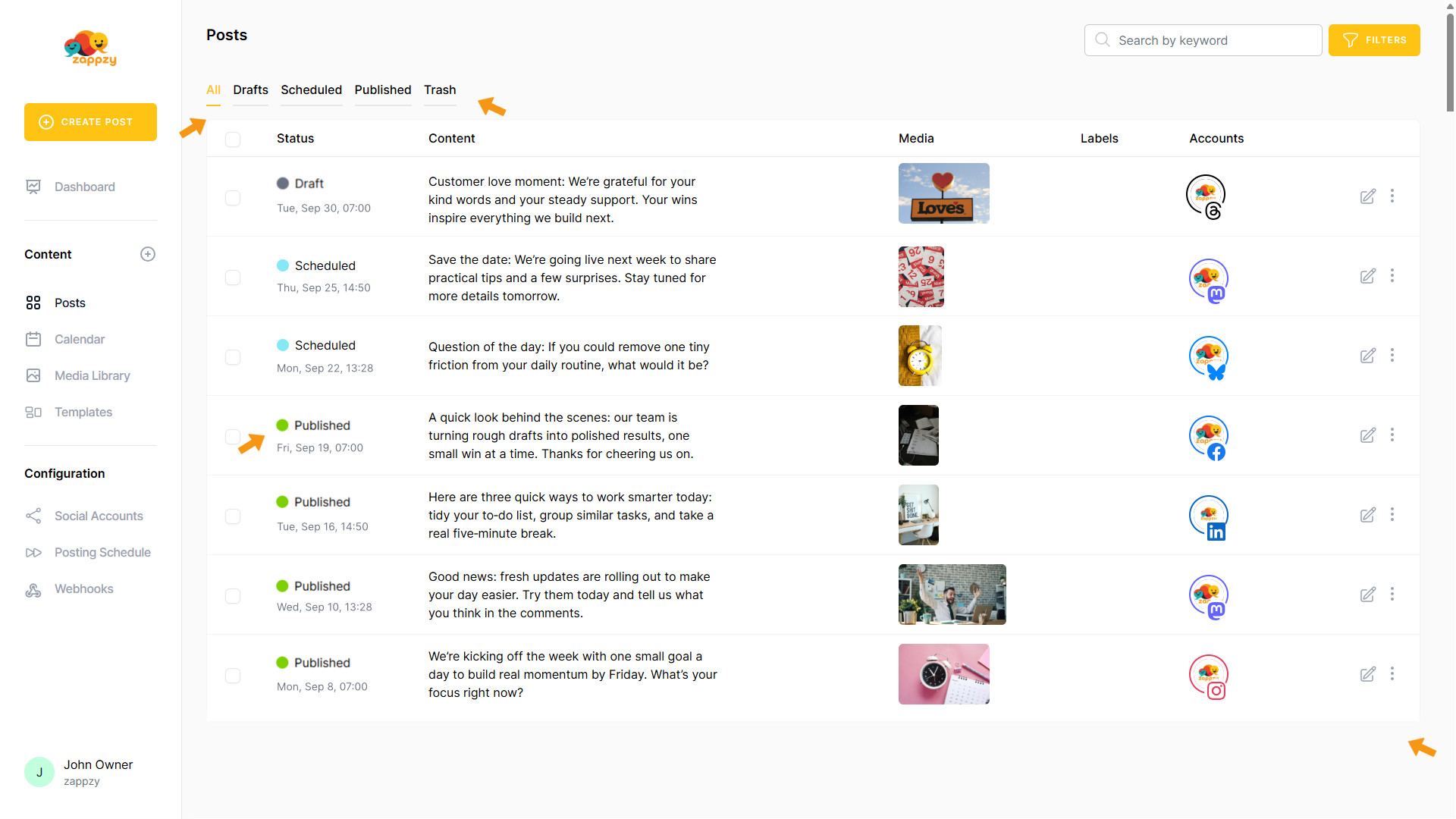
The Posts view is a list of all your posts—filter by status (All, Drafts, Scheduled, Published, Trash) and sort to find what you need fast.
The default view is always All—see all your posts in date order. Across all views, each post displays a status dot for instant clarity—green for Published, blue for Scheduled, gray for Draft.
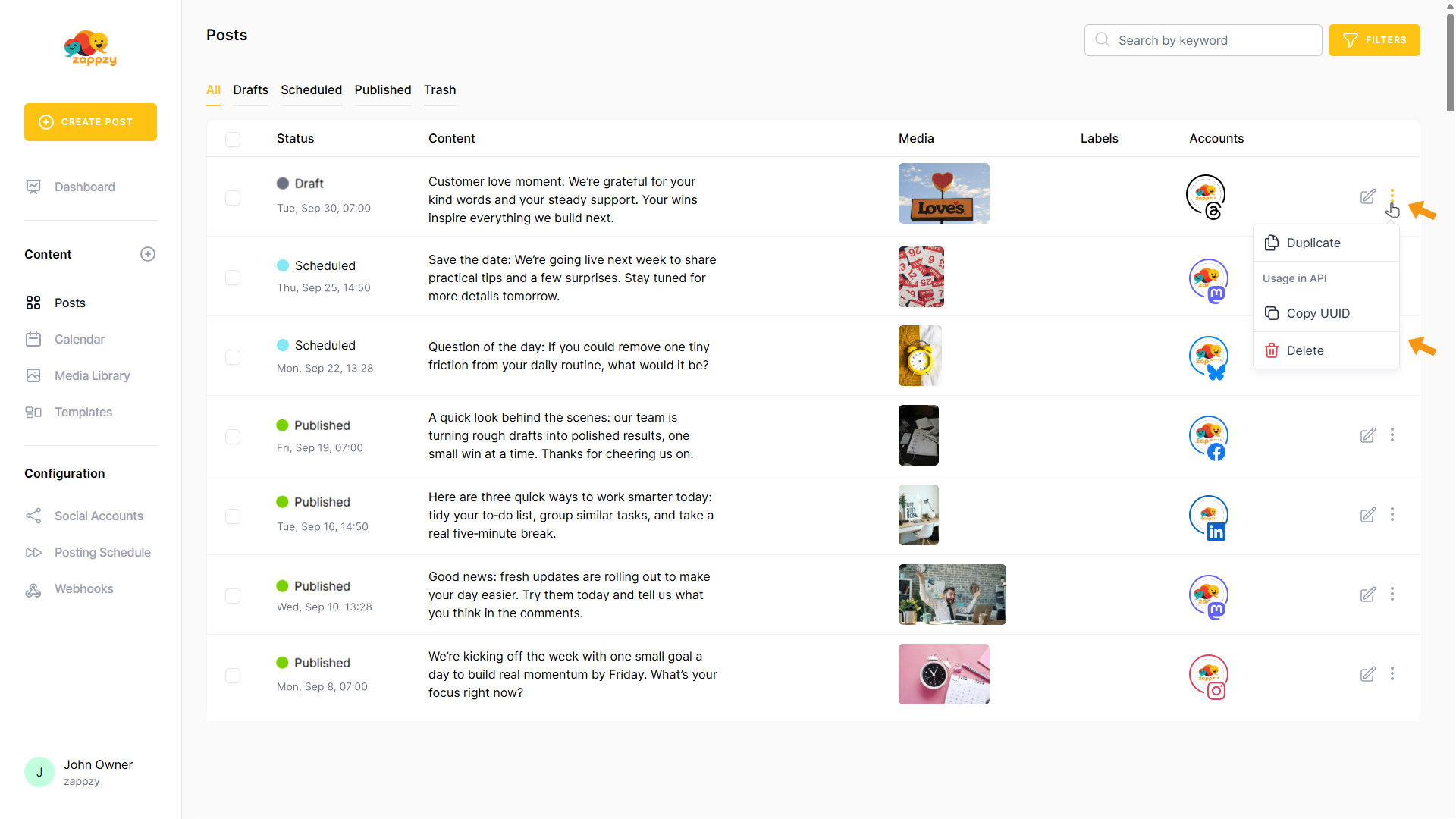
No matter which list, search, or filter view you’re in, you’ll always have the same edit options: from the vertical three-dot menu on the far right, you can duplicate a post, copy its UUID for API use, or delete it.
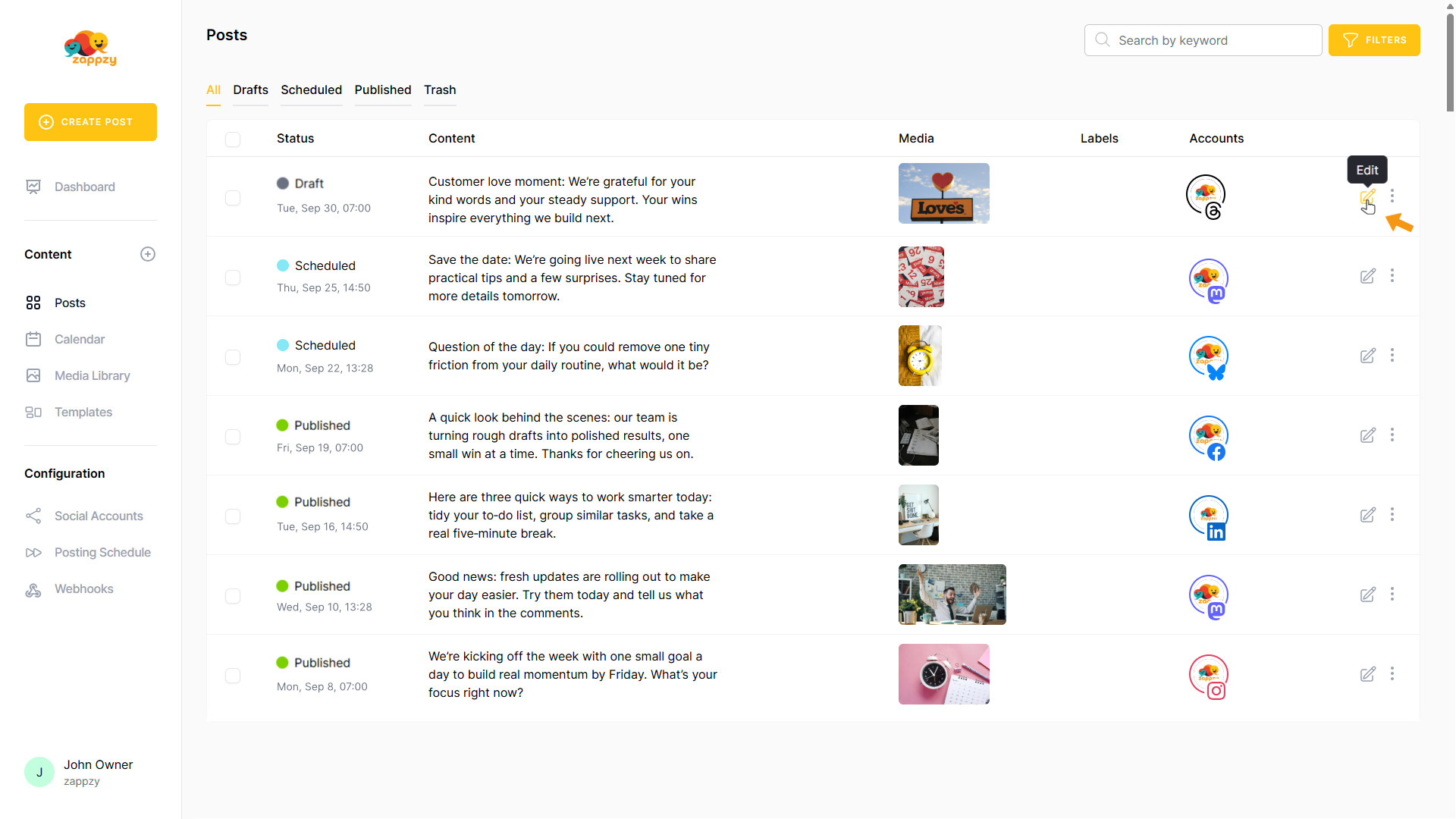
Or, on the far right, click Edit to update the post before publishing—or to continue editing a draft.
For step-by-step guidance on creating a post, see the Create Posts articles.
Note: Once a post is published, it’s no longer editable.
To see all posts that aren’t finished or still need editing, click Drafts in the Posts header. You’ll see every post with Draft status.
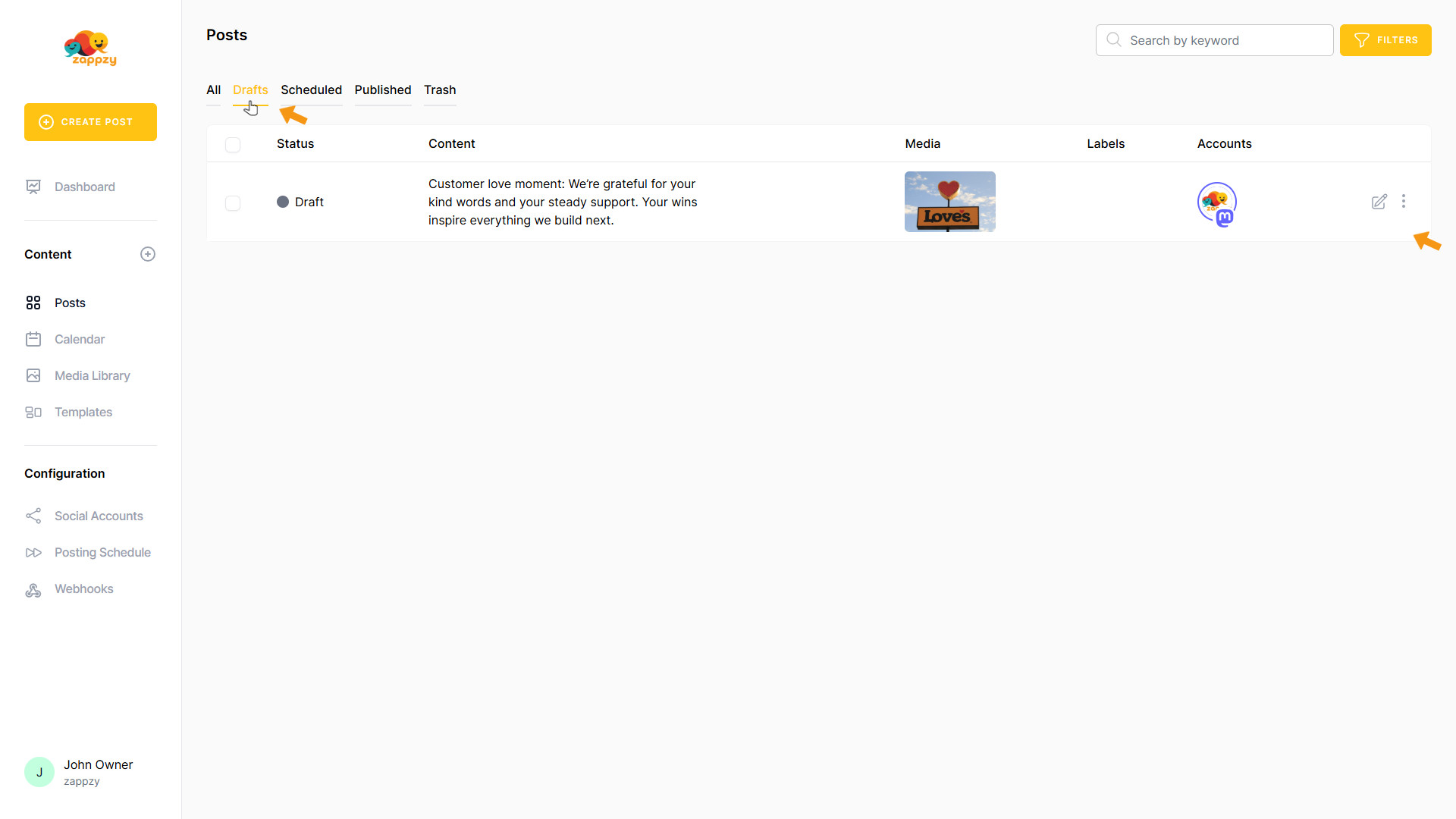
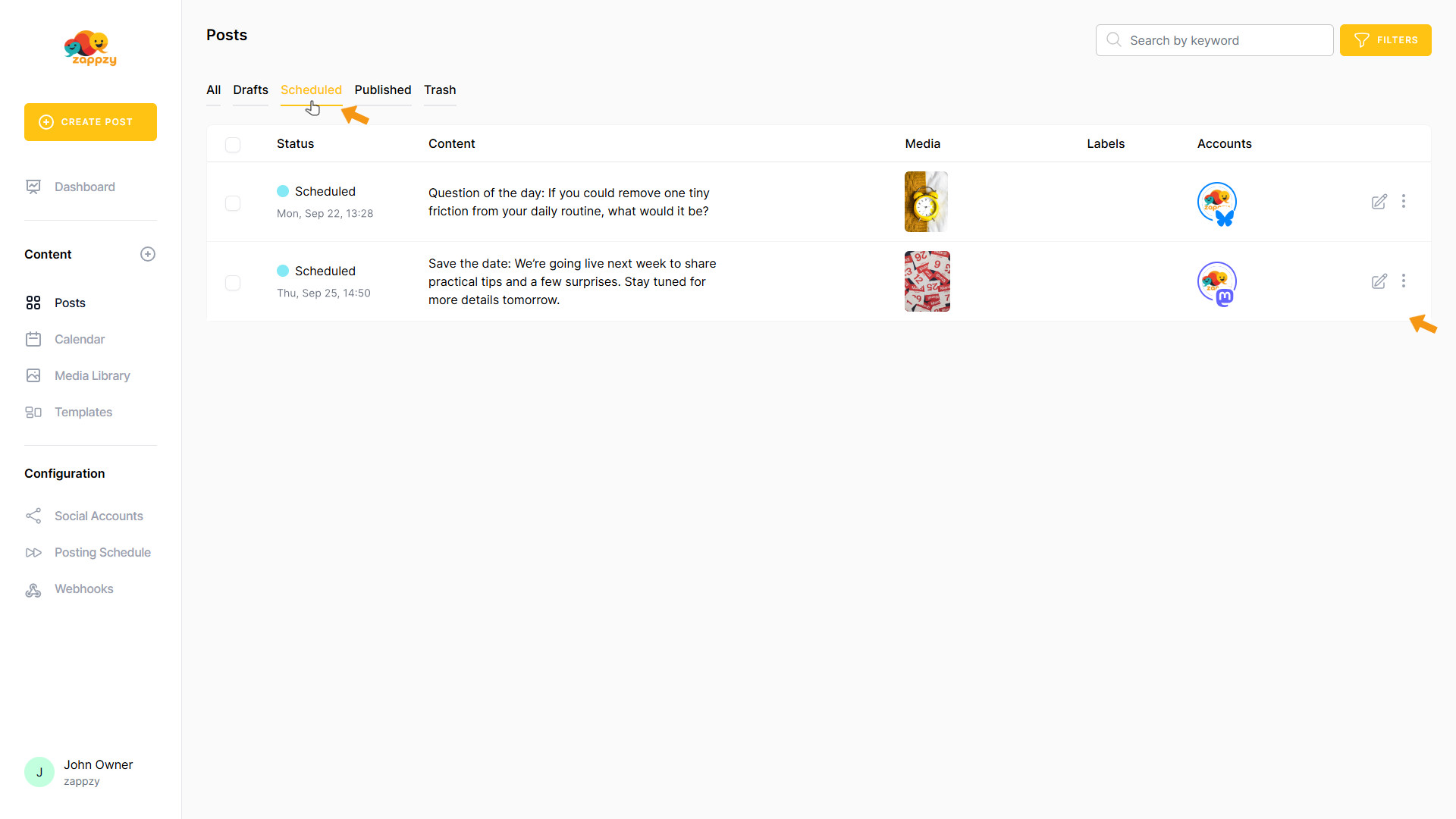
To review your upcoming schedule or make last-minute tweaks, click Scheduled in the Posts header. You’ll see every post with Scheduled status.
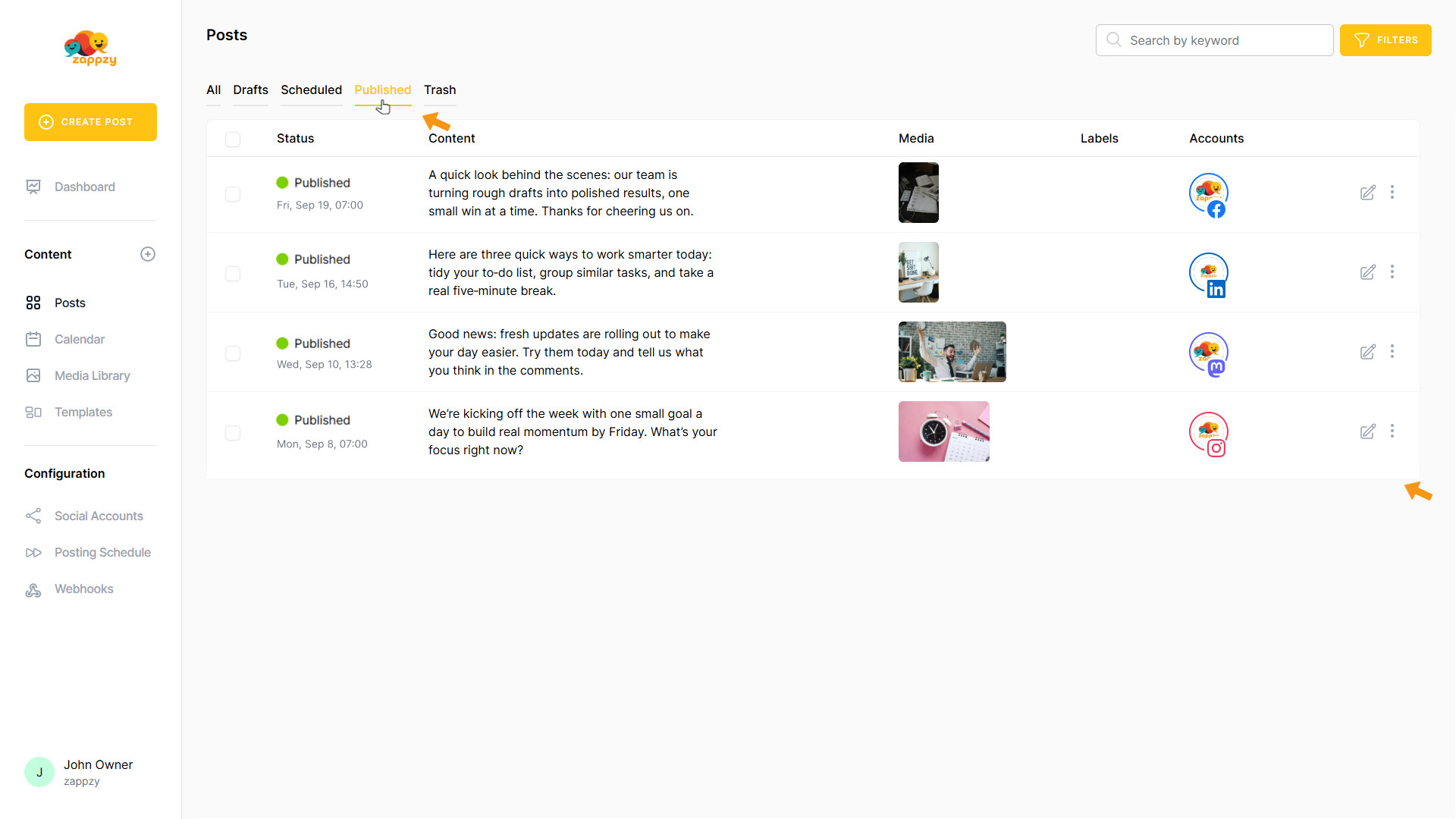
To see every post you’ve ever published—or to find a strong performer to repurpose—click Published in the Posts header. You’ll see every post with Published status.
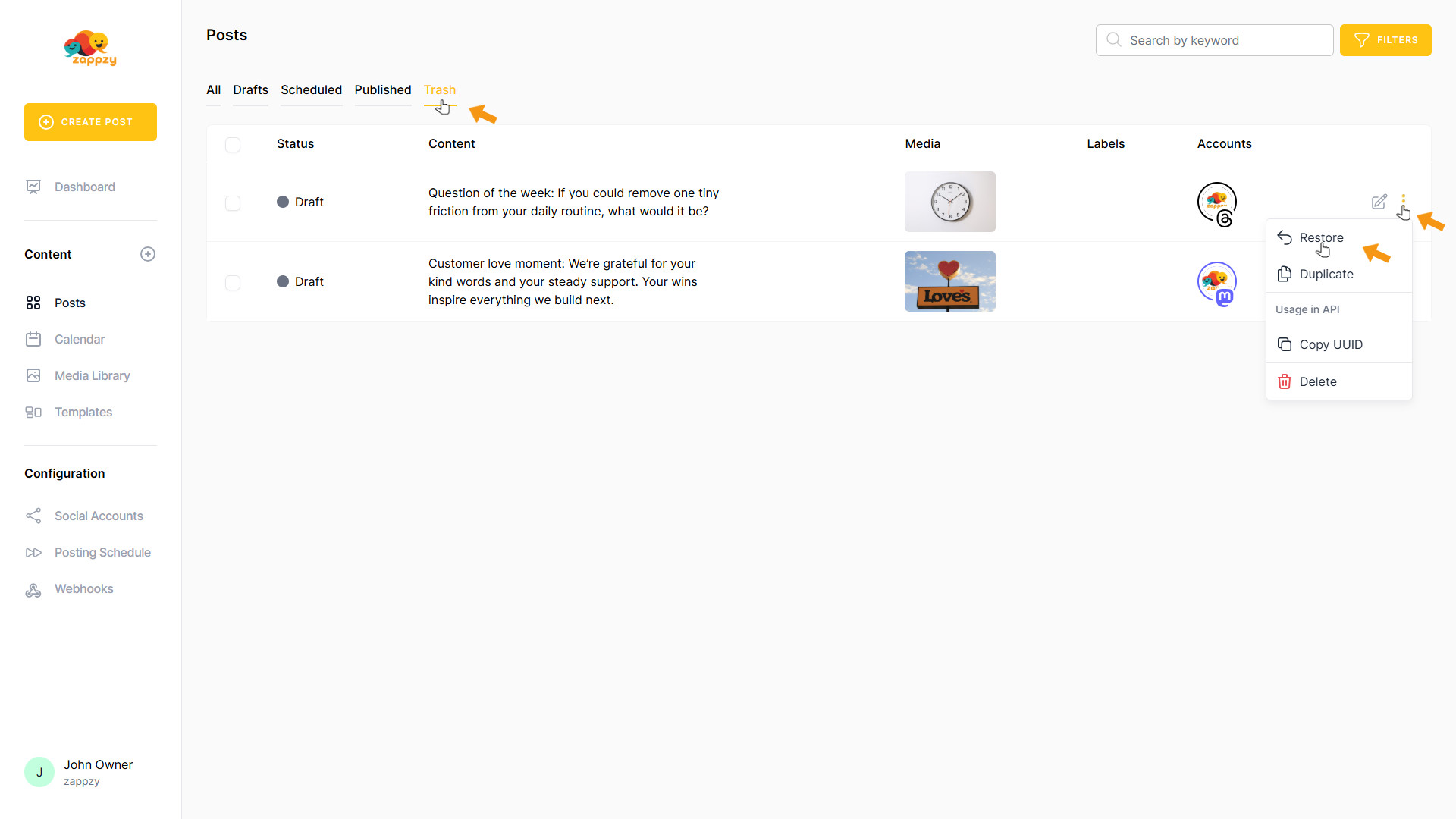
To access the Trash list, click Trash in the Posts header to see all the posts you’ve deleted. Additionally, from the vertical three-dot menu on the far right, you can restore the post—on top of the other options already described.
Note: Once a post is trashed, it’s no longer editable.
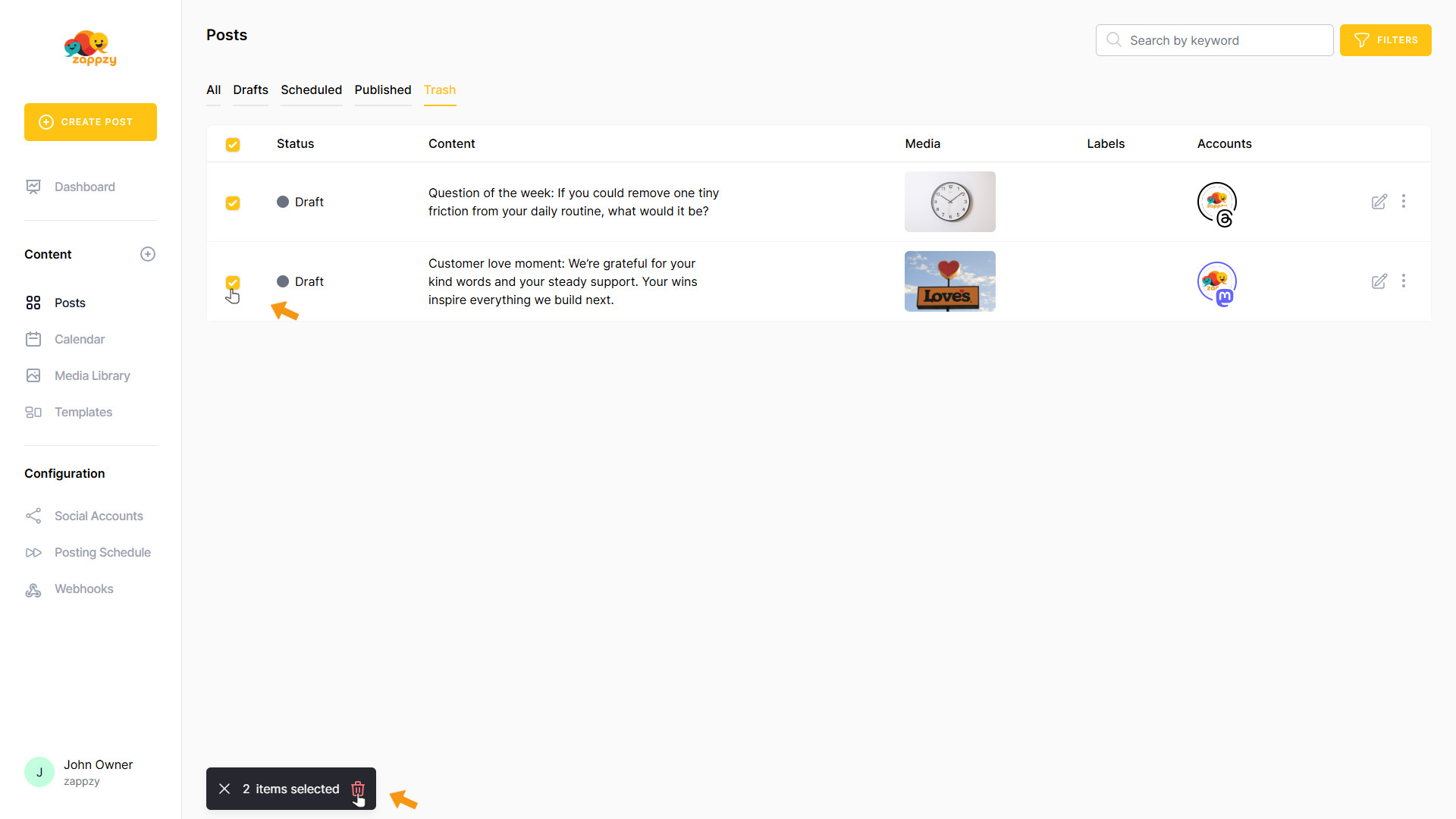
To permanently delete posts from Trash, select the checkbox next to the post. A pop-up will appear at the bottom. Click the red trash bin to permanently—and irreversibly—delete the selected posts. This action can’t be undone.
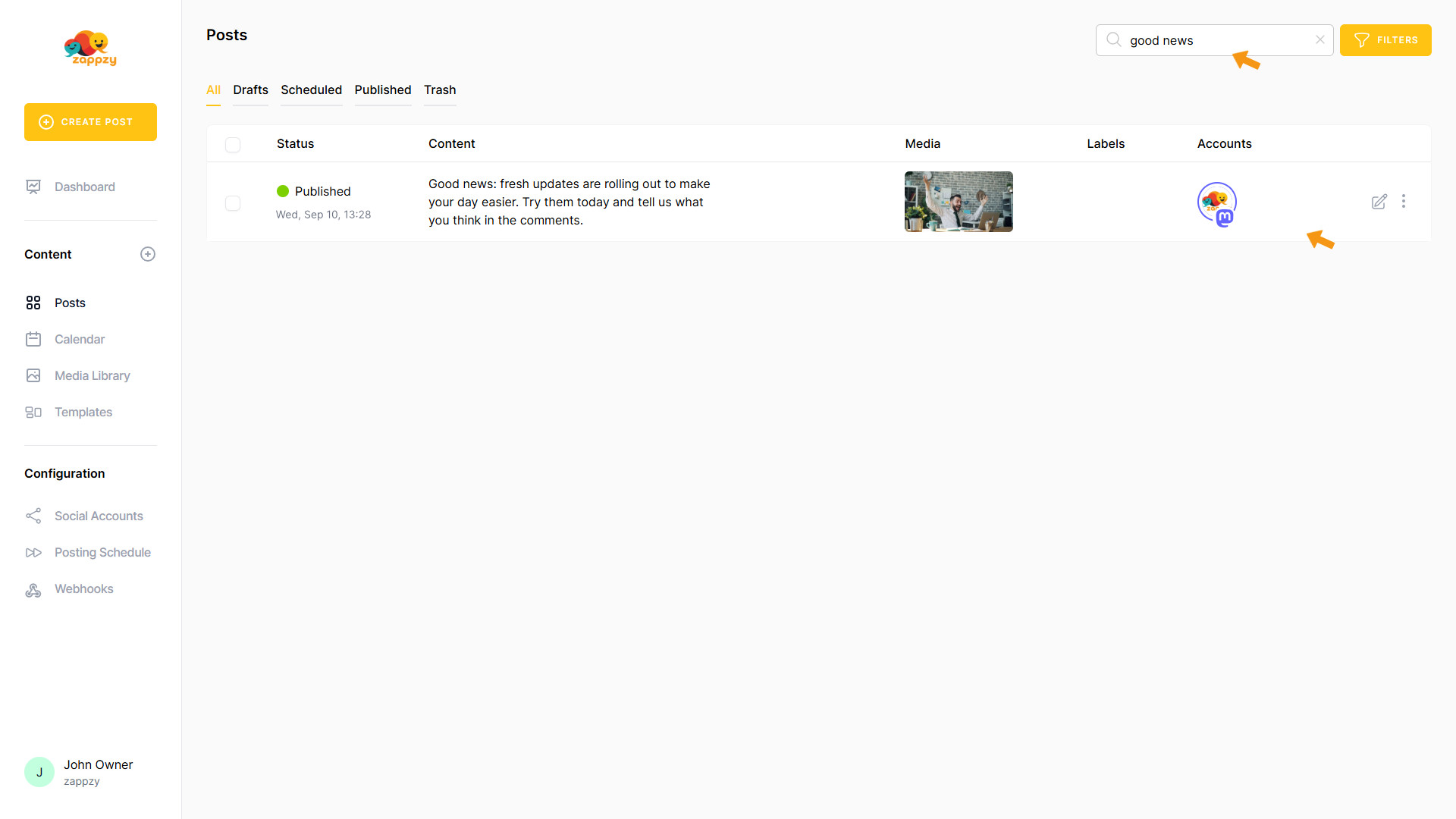
In the Posts header, use the search field to find any post you’ve ever created. Type a few words from the post text, and zappzy instantly filters the view to show only the matching results. This is especially helpful when you’re managing a high volume of posts overall.
Important: Use search only in the All view so zappzy can search across all statuses. Trash is excluded—if you need to search in Trash, switch to the Trash view.
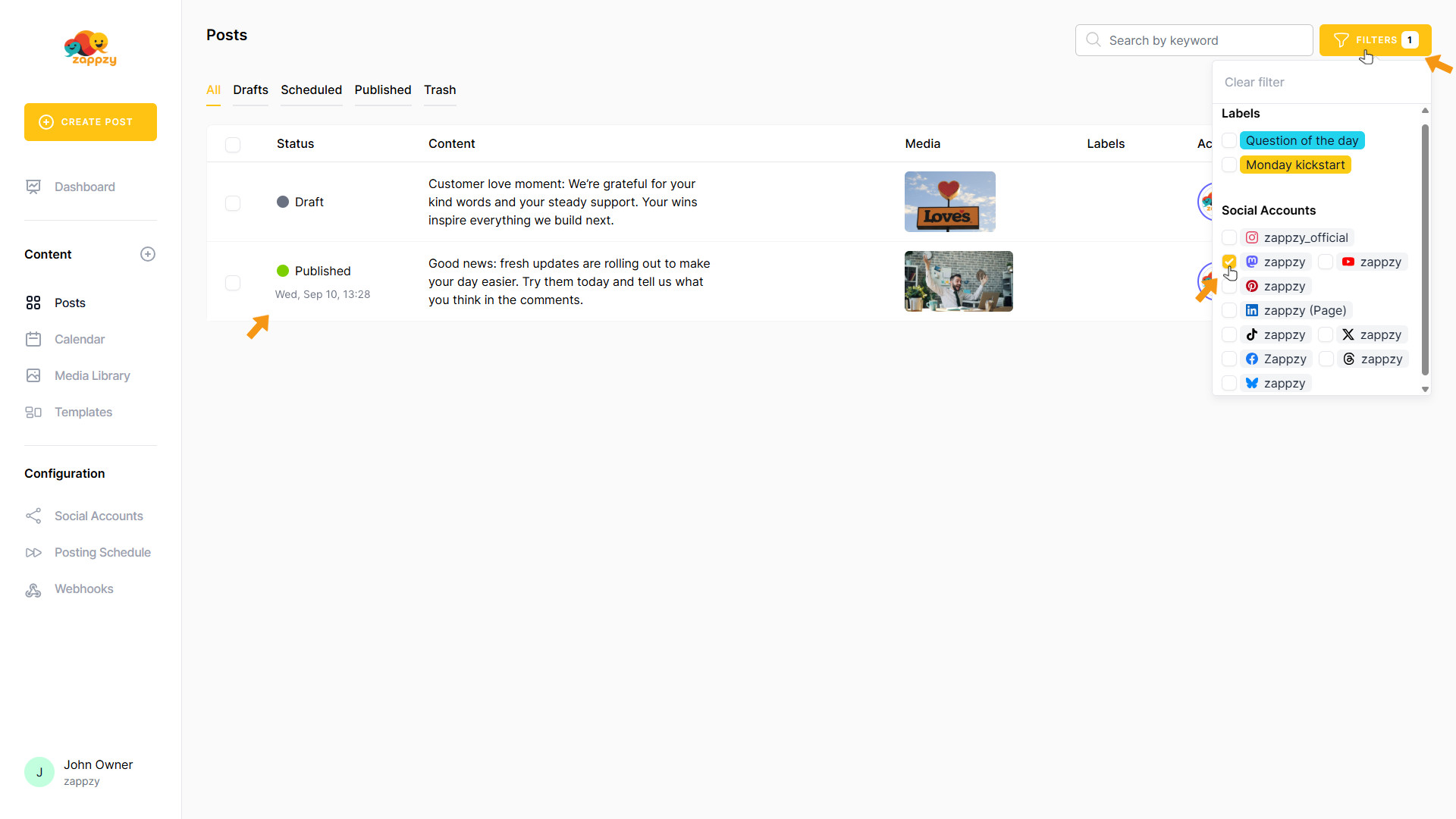
You can also filter by labels and social accounts. Click the FILTERS button in the Posts header, then check the box for the label(s) and/or social account(s) you want. zappzy will show any posts you’ve ever created that match—tagged with the selected label(s) and/or social account(s). This is especially helpful when you’re managing a high volume of posts overall.
Important: Use filters only in the All view so zappzy can filter across all labels and social accounts. Trash is excluded—if you need to filter Trash, switch to the Trash view.
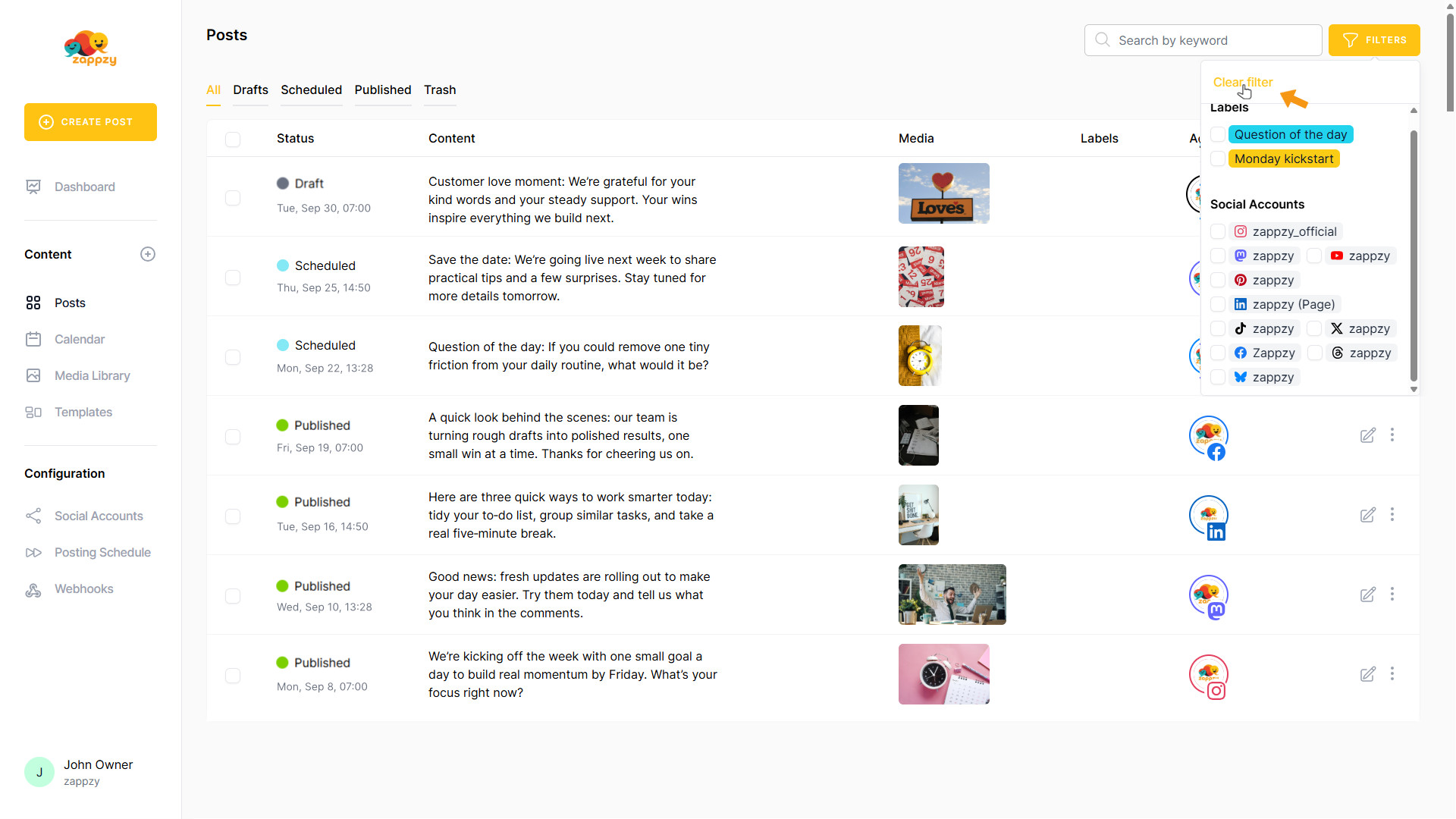
To clear the filter, simply click Clear filter.
What do all these views, filters, and search tools do for you? They centralize your content into a clear, fast workspace—so you find what you need in seconds, act instantly, and keep momentum even at high volume. Use filters and search to narrow by labels or social accounts, then jump between statuses to stay focused and in control. Result: less chaos, more speed, and a cleaner, safer workflow from draft to publish.