
zappzy Support Center > Content > Media Library > Upload: Bring in your own images and videos—reuse them across your posts

Video or step-by-step guide with screenshots. Your choice. We’ll make it work either way.
Step-by-step guide
Once you're logged in to zappzy, you'll see the Content section. Click on Media Library below.
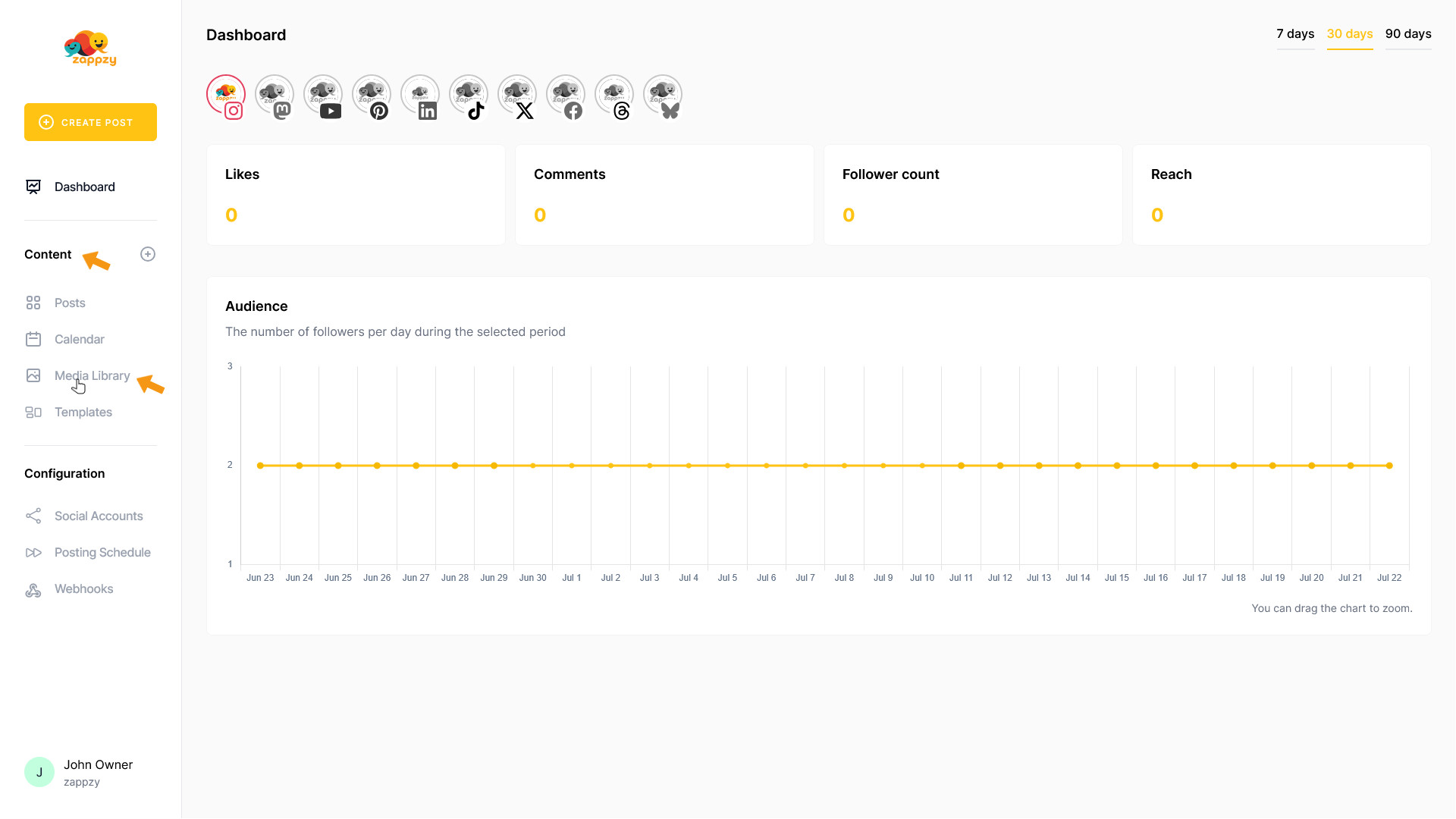
The Media Library overview will appear on your main screen.
On the main screen, click Upload to add or view your own images and videos.
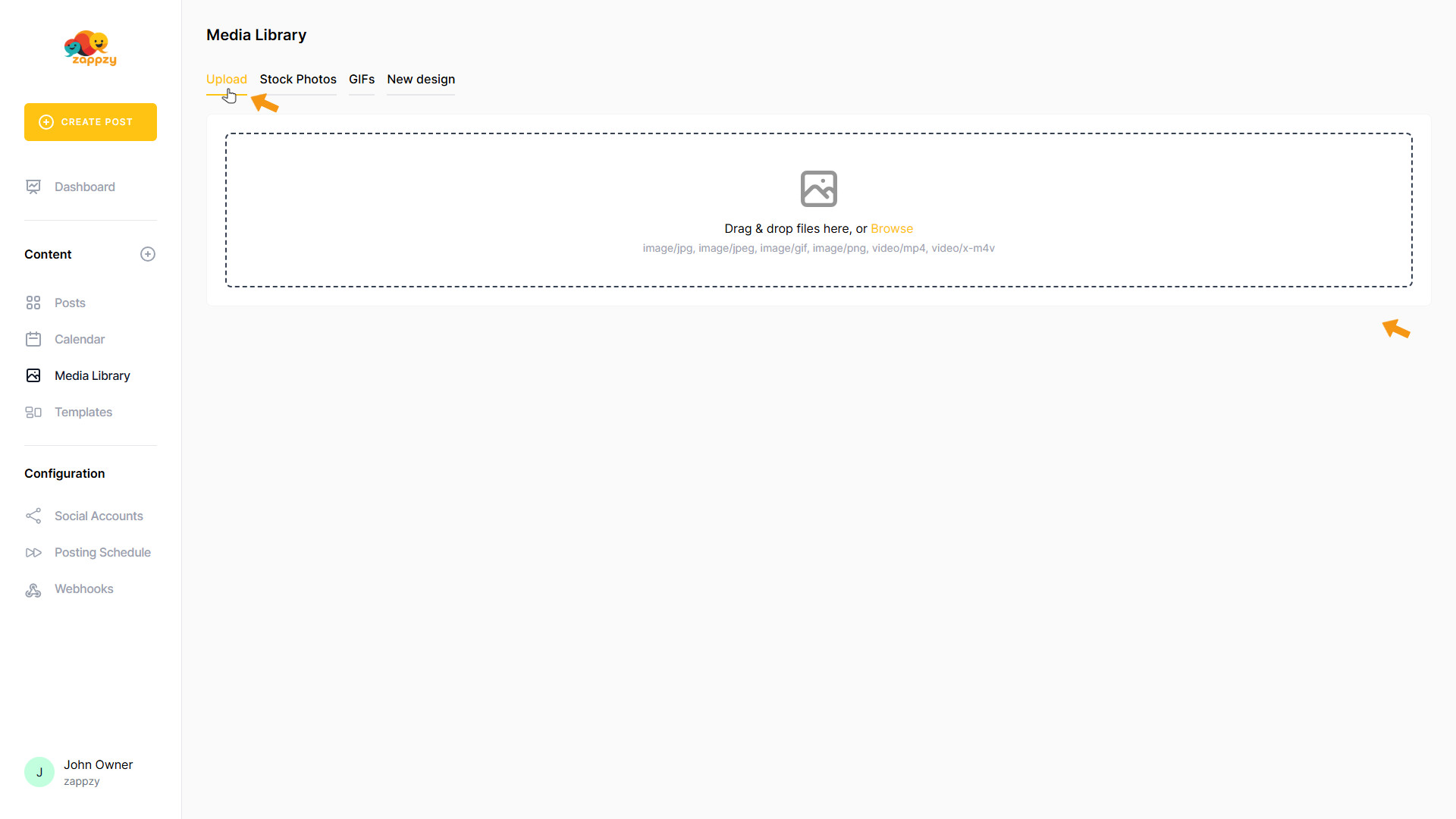
Your uploaded images and videos appear on the main screen.
Note: If you haven’t uploaded anything yet, you’ll see no medias.
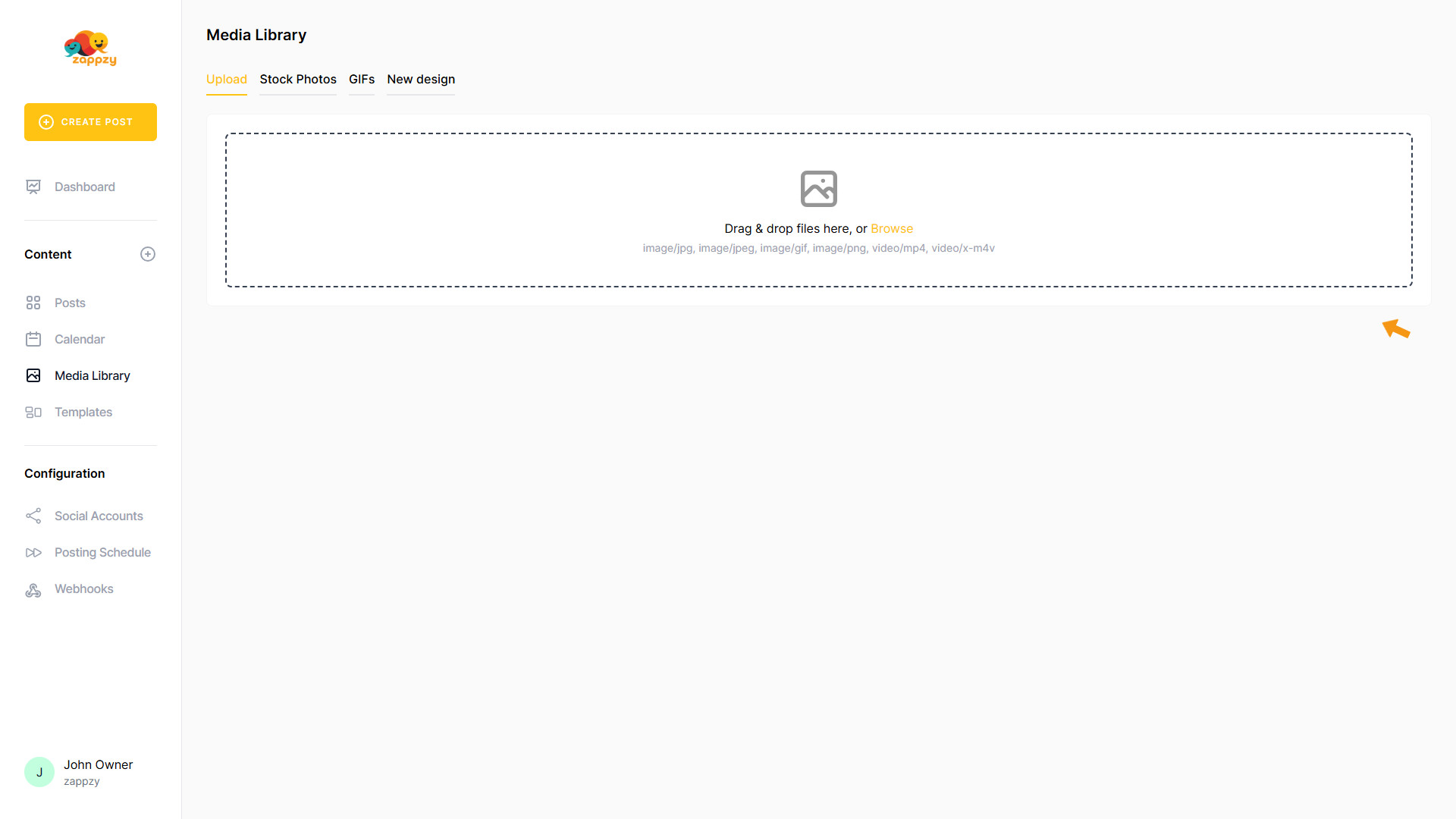
To upload an image or video to your Media Library, drag the media item from your computer into the upload area—the “Drag & Drop files here” drop zone—on the main screen.
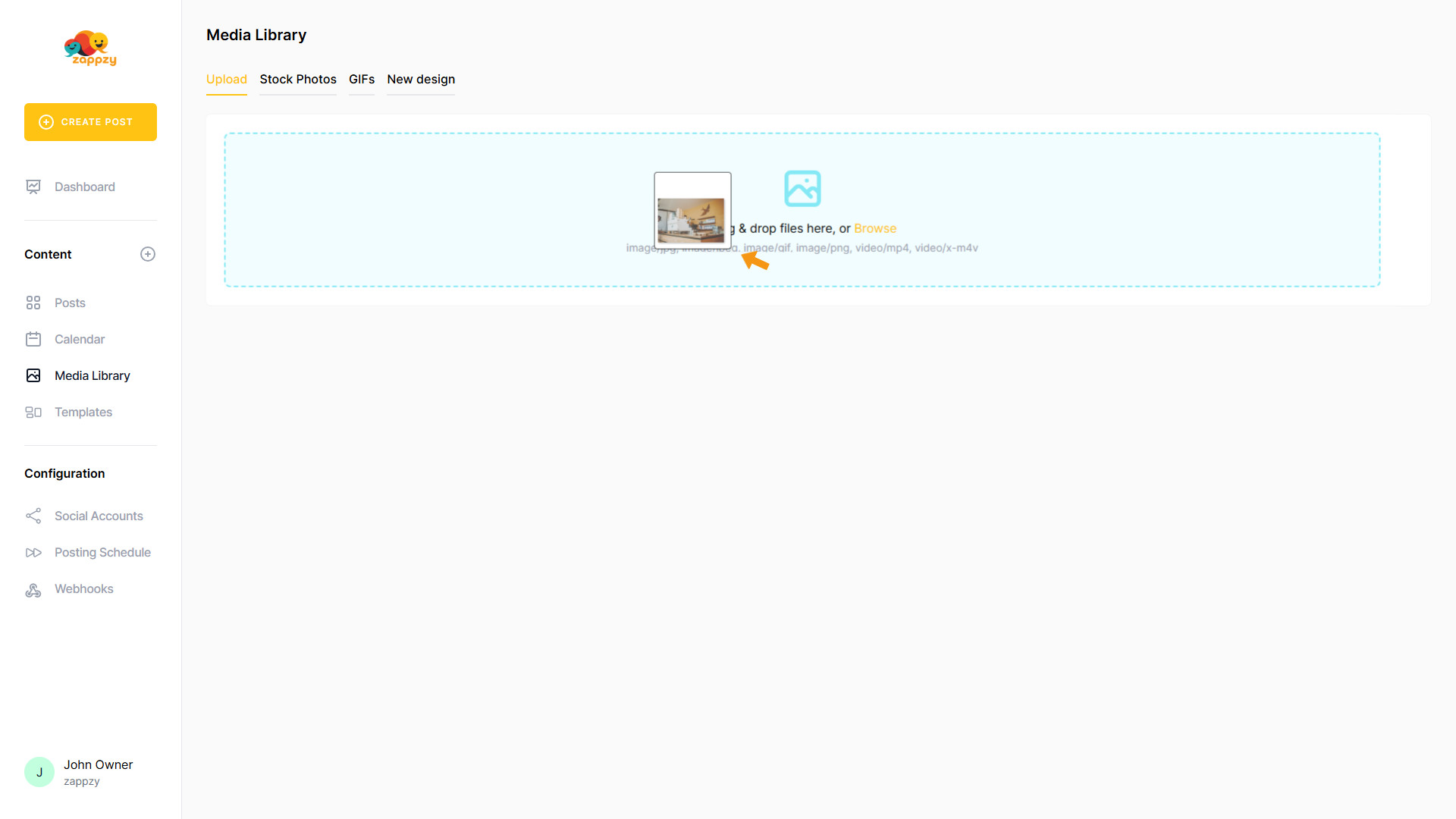
Or click Browse in the upload area to open your computer’s file picker and select the media item.
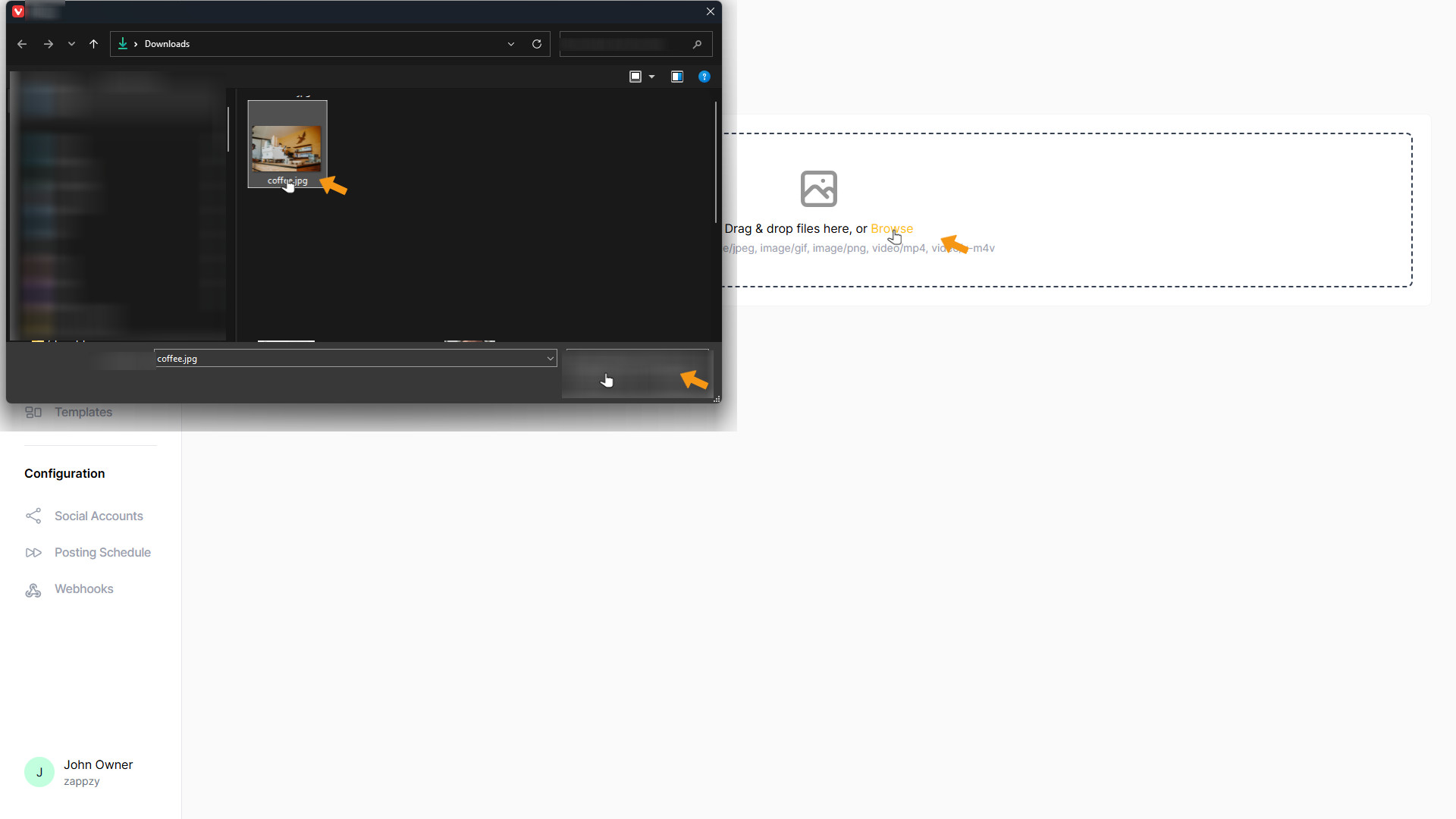
You can, of course, also select and upload multiple media items at once.
The selected media item is now uploading to your Media Library. When the upload is complete, it will appear in the Upload Media Library.
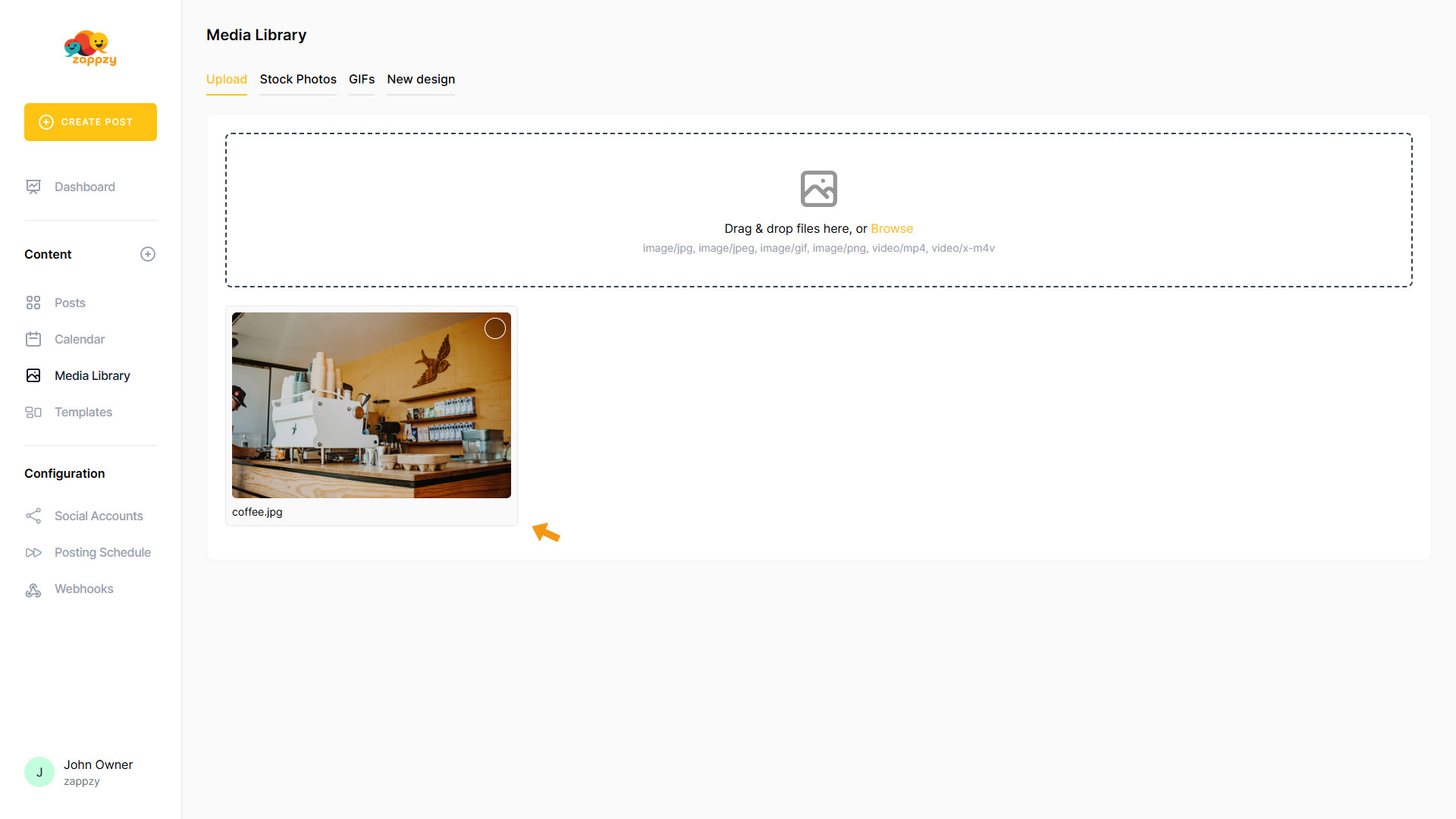
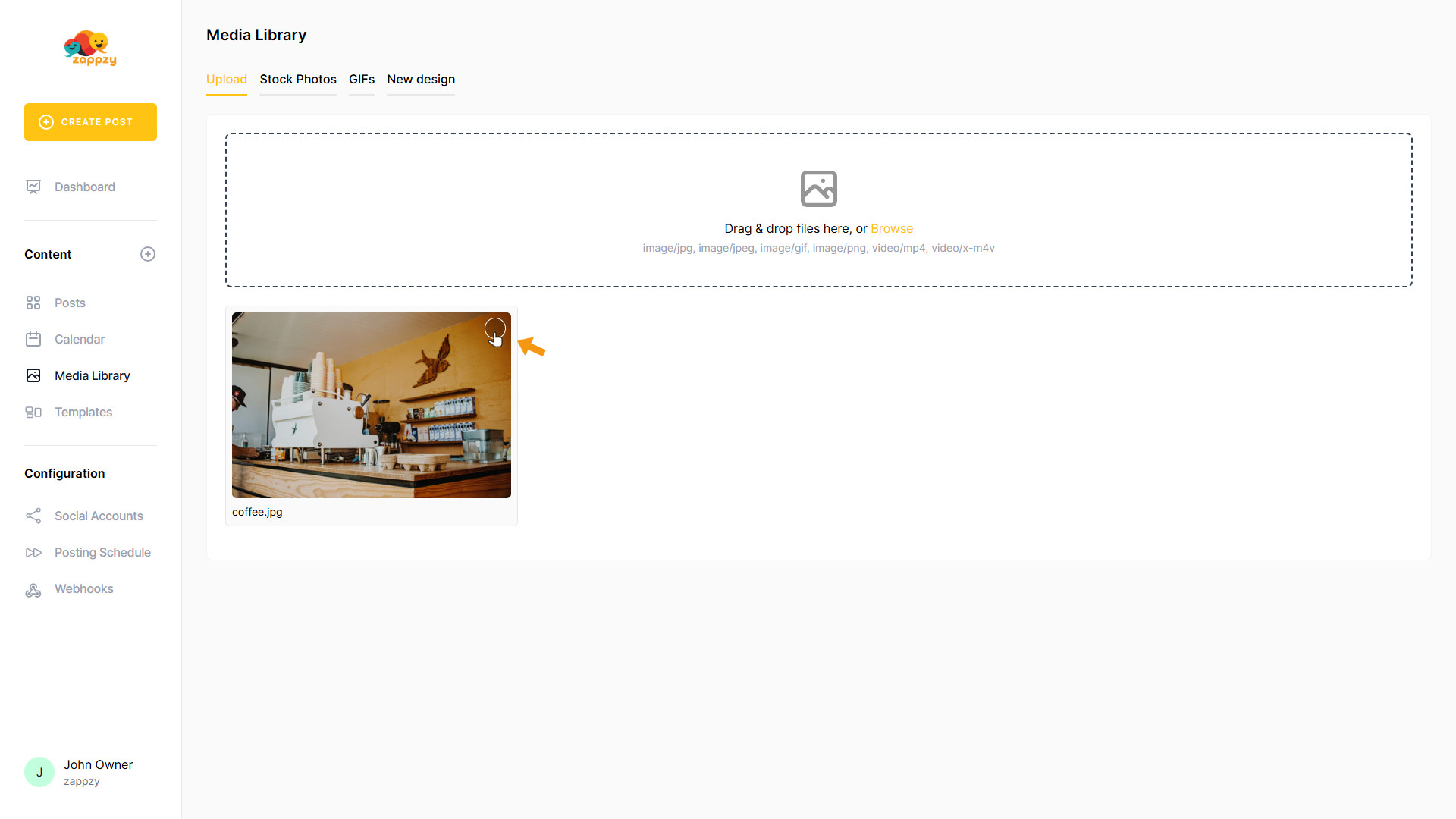
To delete a media item, click the circle on the media item's image.
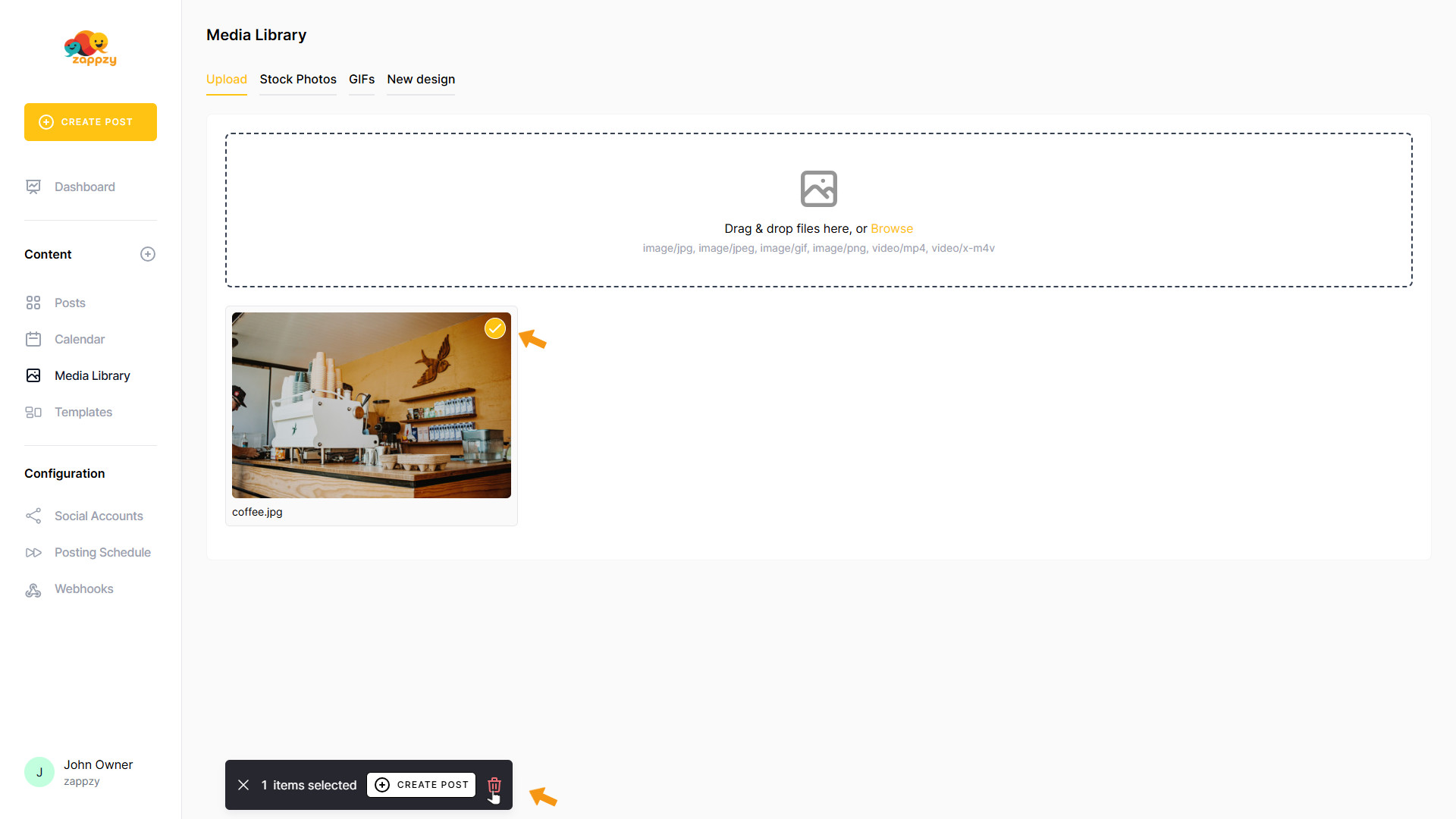
A pop-up will appear below. Click the red trash can icon to delete the media item.
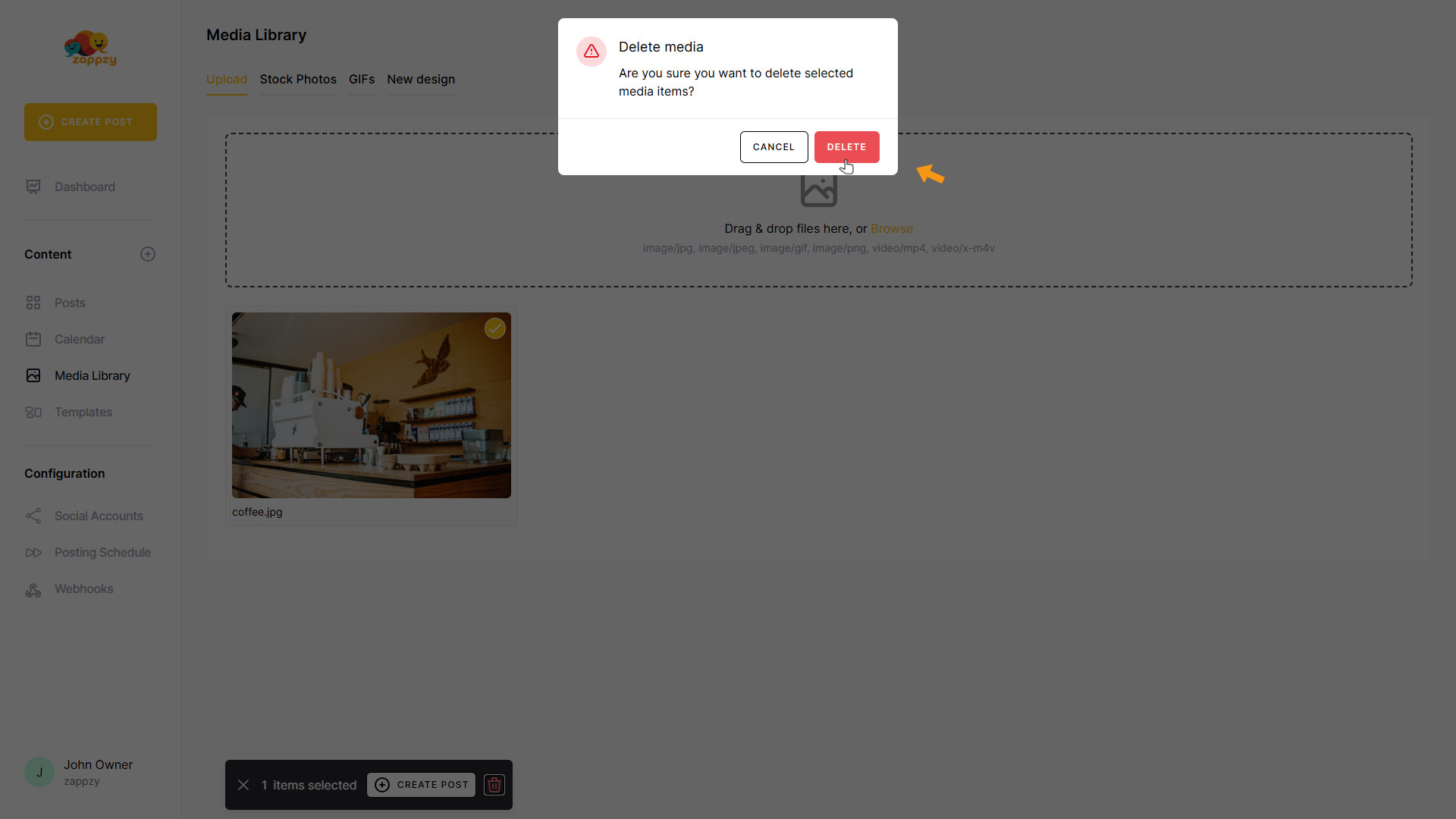
For security reasons, a confirmation pop-up appears asking if you really want to delete the media item. If you’re sure, click Delete.
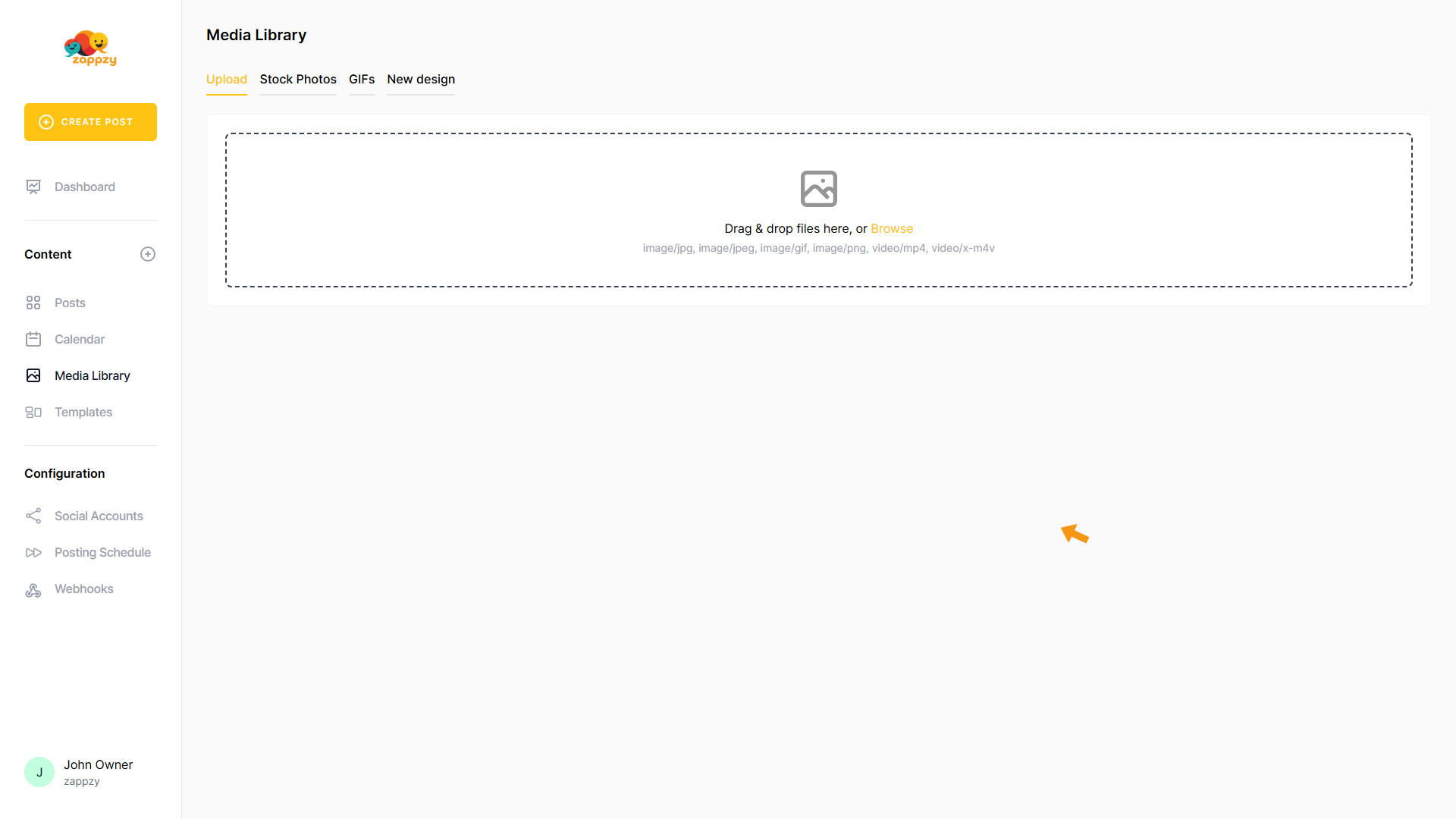
The selected media item has been deleted.
We explain how to integrate selected media items into your post in the Create Posts articles.