
zappzy Support Center > Content > Media Library > Stock Photos: Search and add free stock photos directly in zappzy

Video or step-by-step guide with screenshots. Your choice. We keep it easy.
Step-by-step guide
Once you're logged in to zappzy, you'll see the Content section. Click on Media Library below.
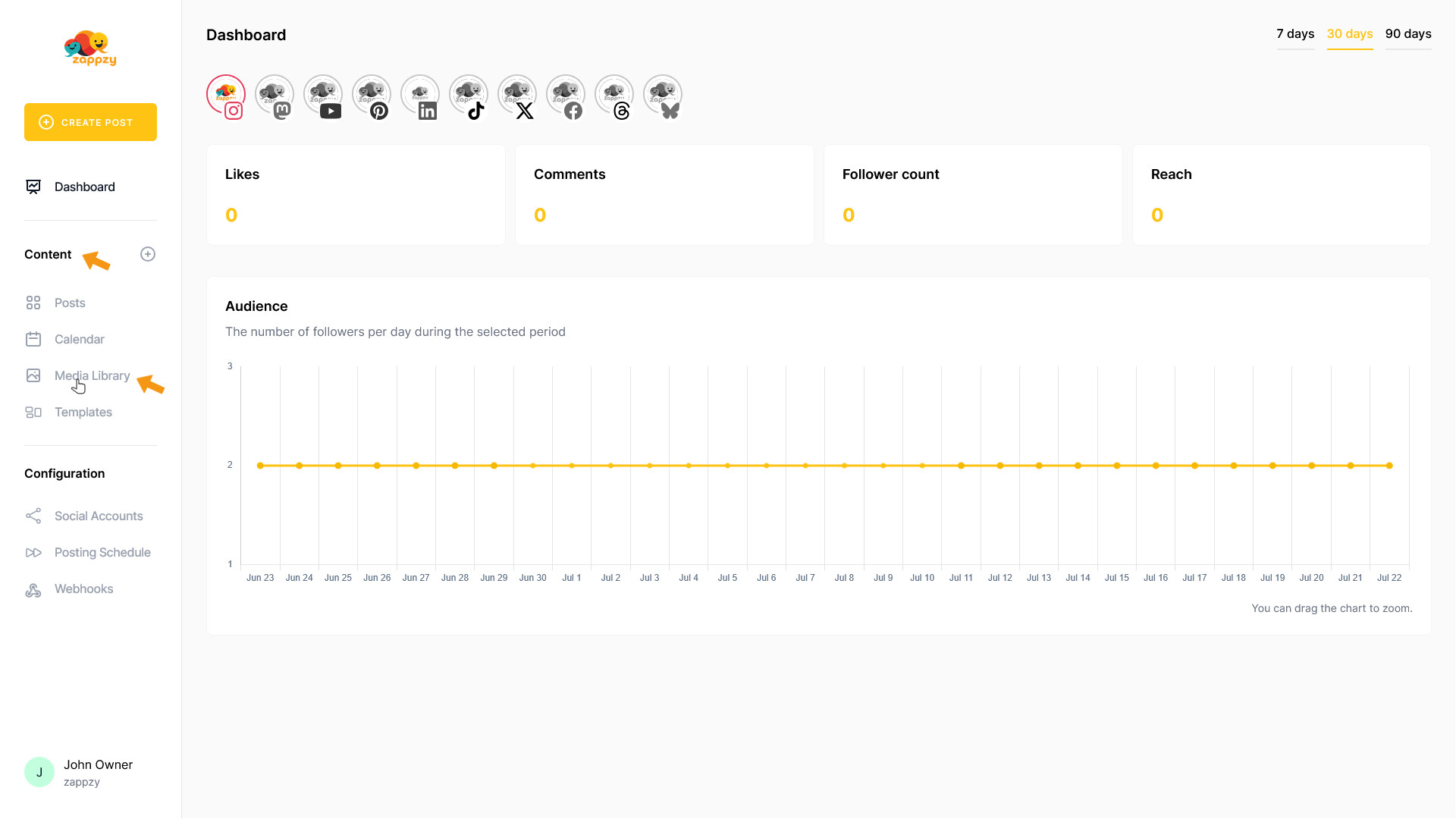
The Media Library overview will appear on your main screen.
On the main screen, click Stock Photos to find free photos.
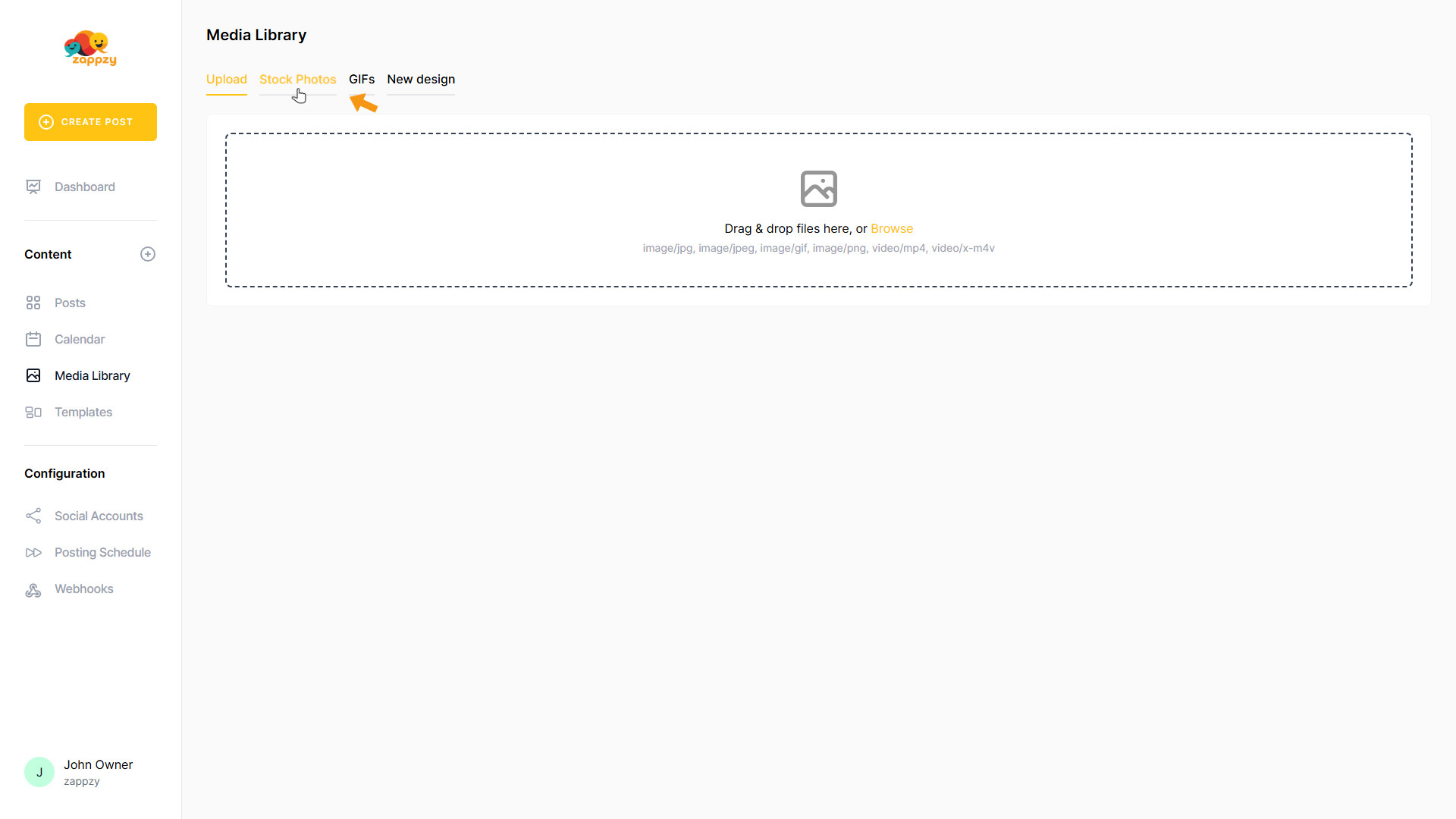
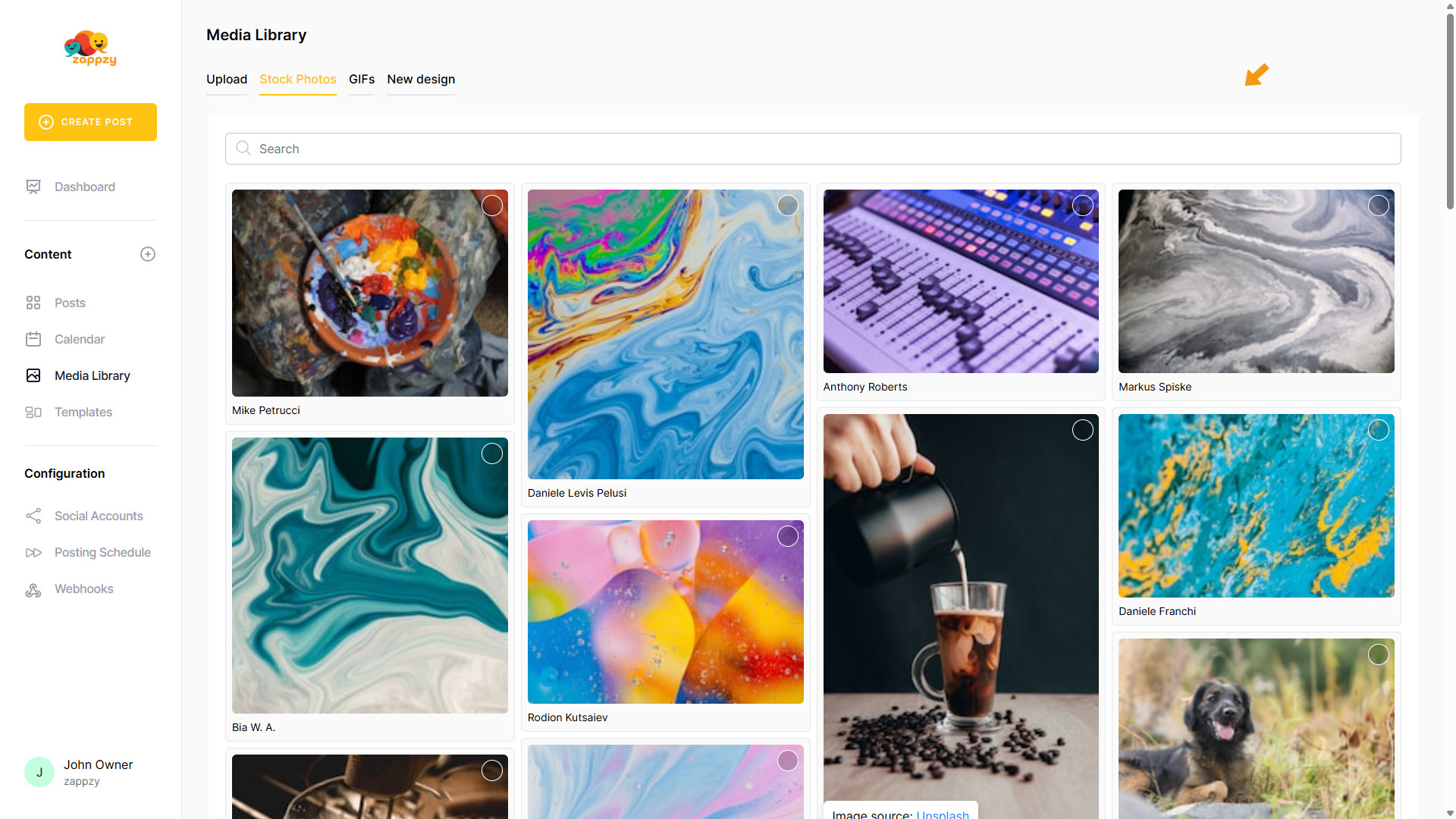
On the main screen, you’ll see a search field and a rotating selection of top photos that refreshes each time.
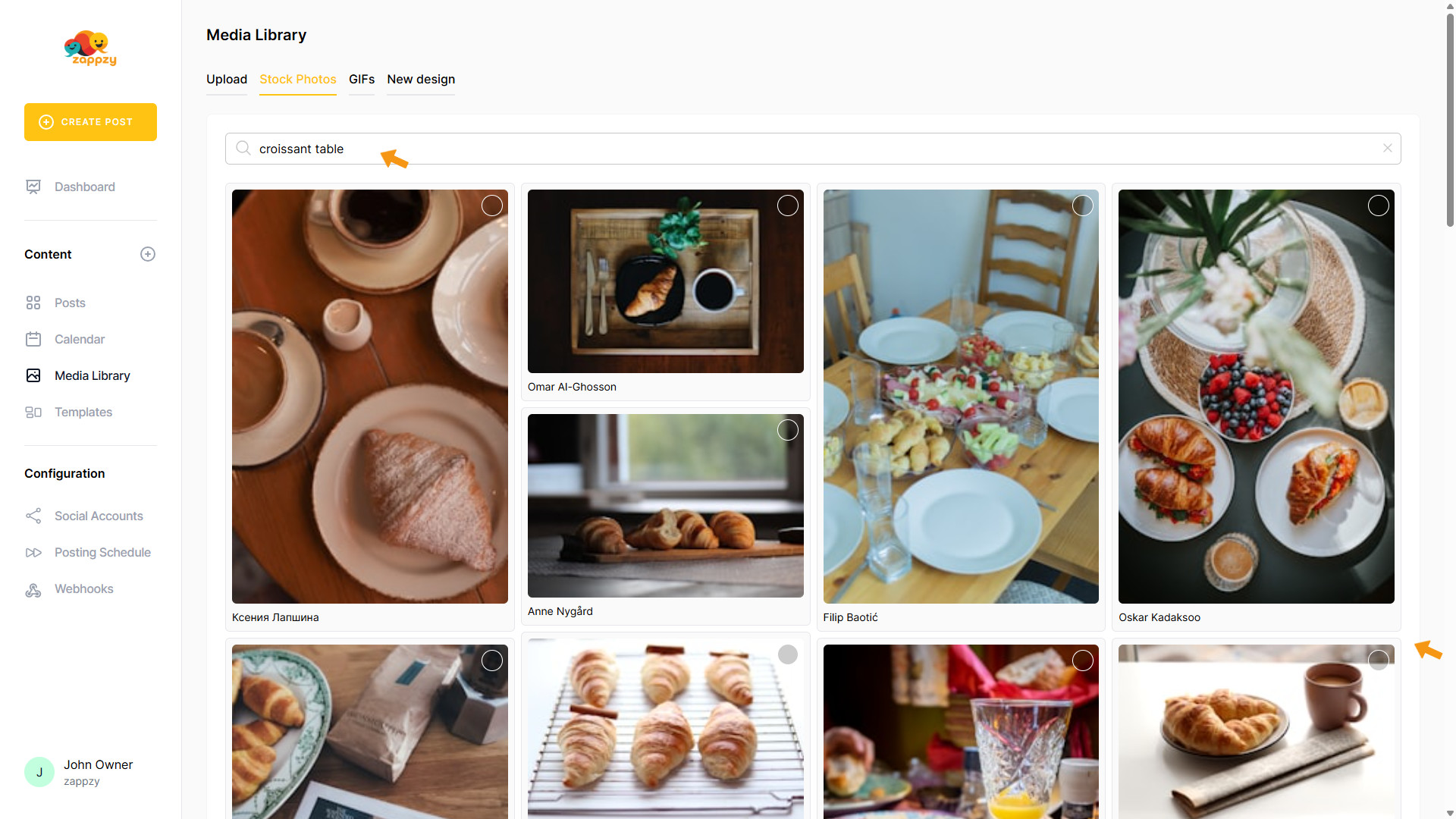
To find the right photo for your posts, type one or two highly relevant keywords into the search bar. The more specific you are, the better the suggested images.
To select a photo, click the circle on the image you want to use.
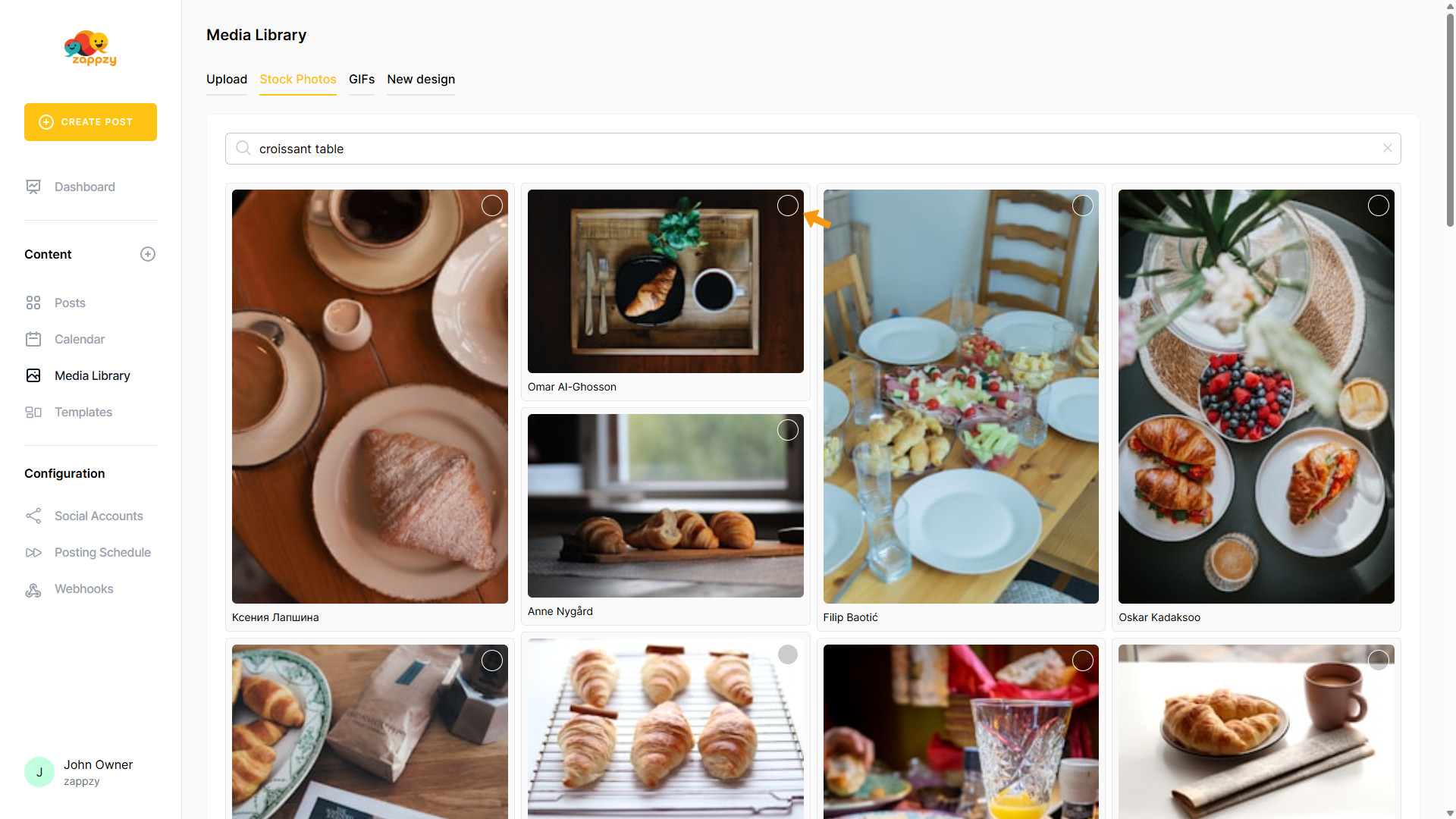
A pop-up will appear below. You can now create a post directly with this photo. Click CREATE POST.
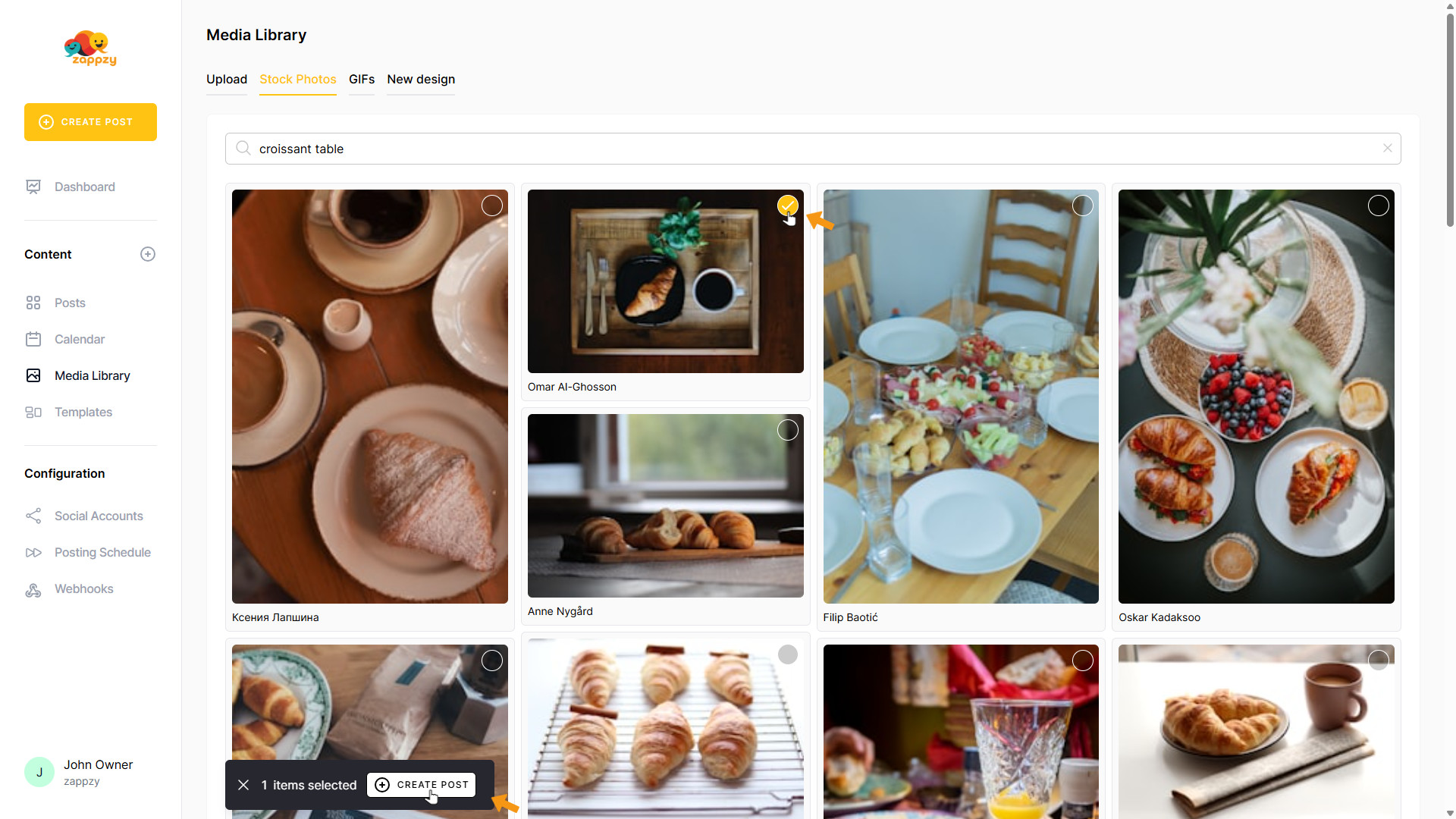
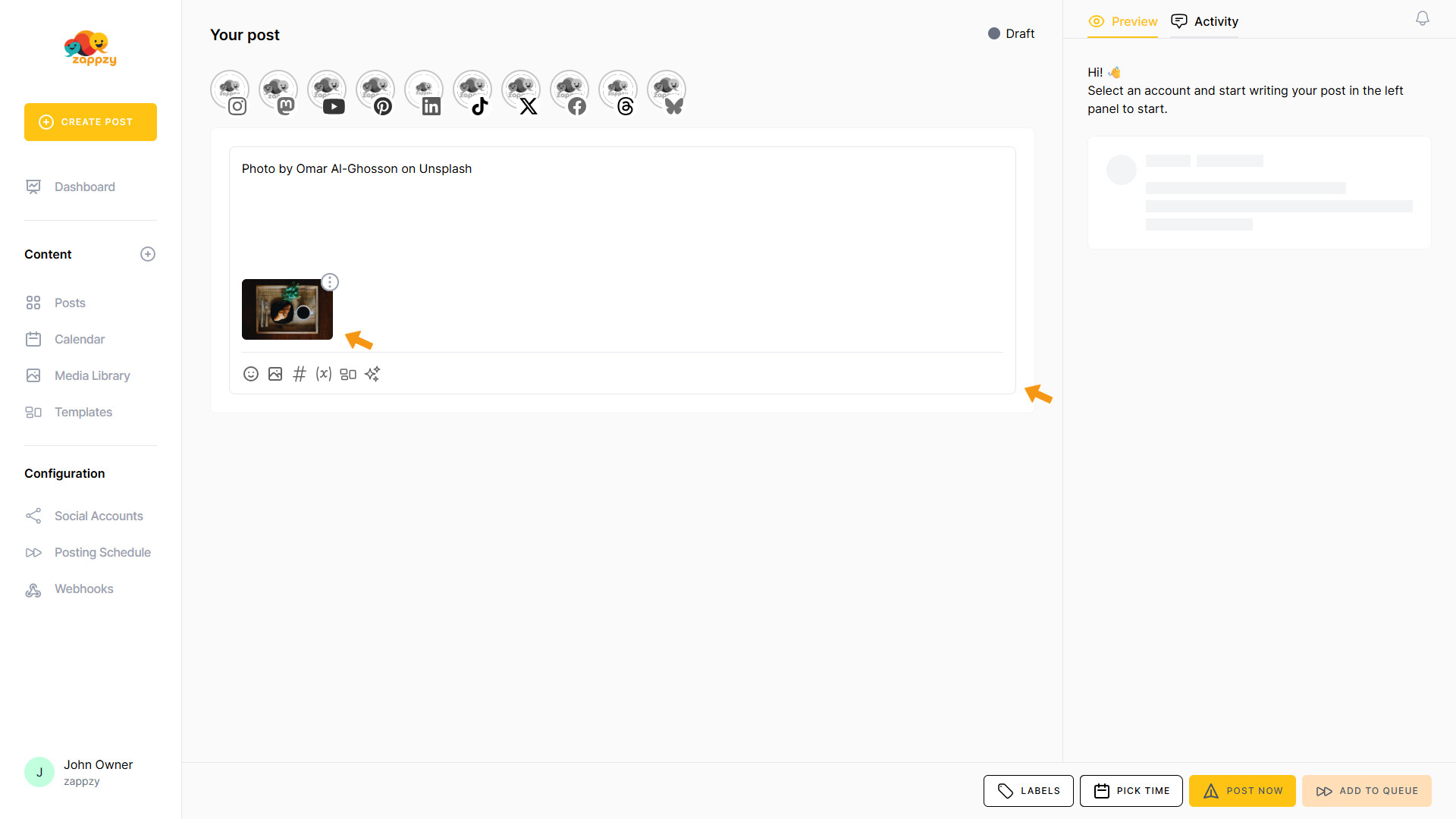
A blank post is created with your photo automatically added. You can now create your post without worrying about the image.
For step-by-step guidance on creating a post, see the Create Posts articles.
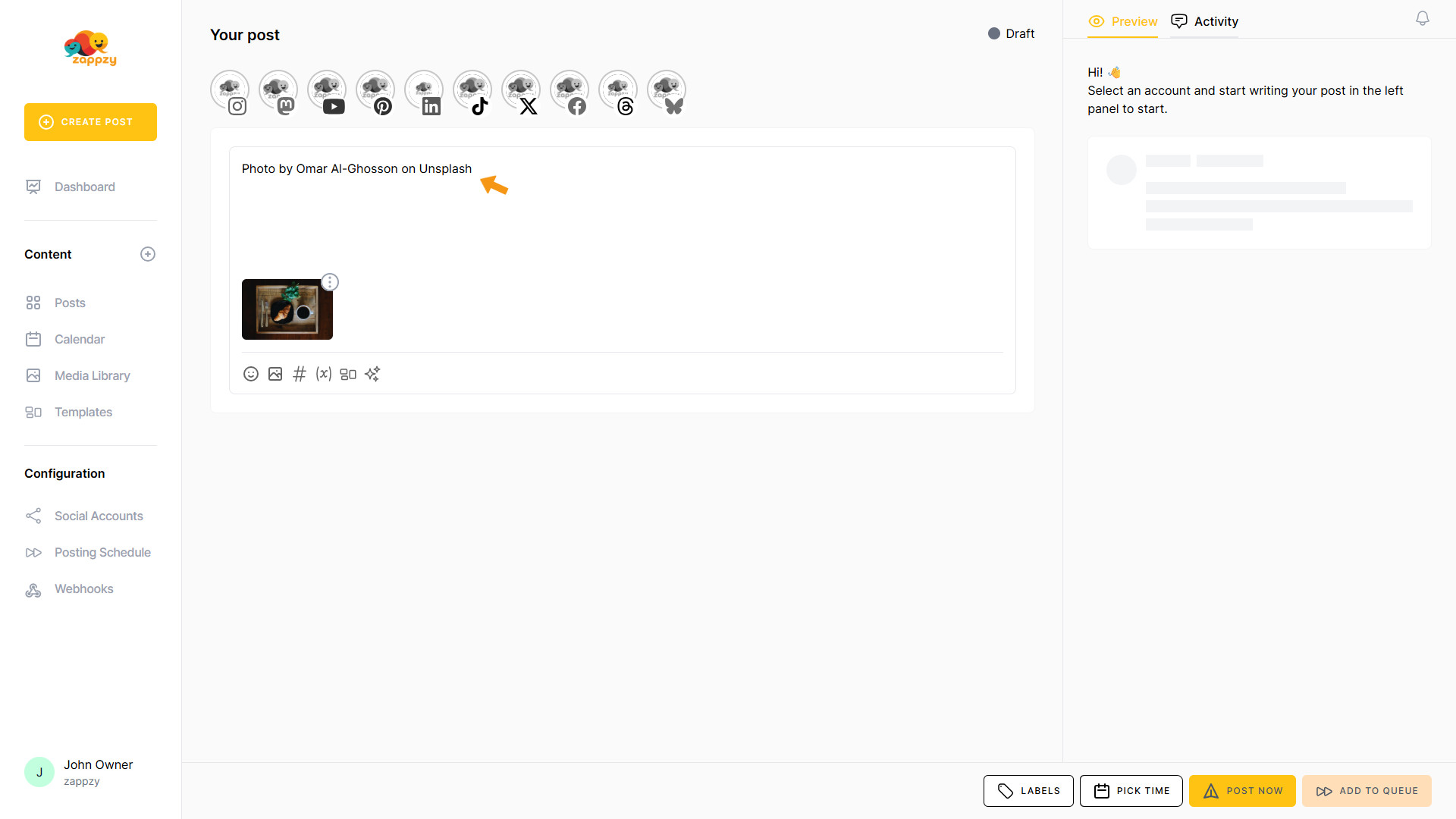
Important: Our stock photo provider requires us to include the photo credit in the post, so you’ll see the photographer’s name in your post—this satisfies the legal requirement. If you prefer, you can publish the photo without the credit; it’s optional, and you can remove that text from your post at any time.
When you return to the Media Library (Upload), you’ll see your selected image saved there. You can reuse it anytime—for another post on a different social platform or for a future post.
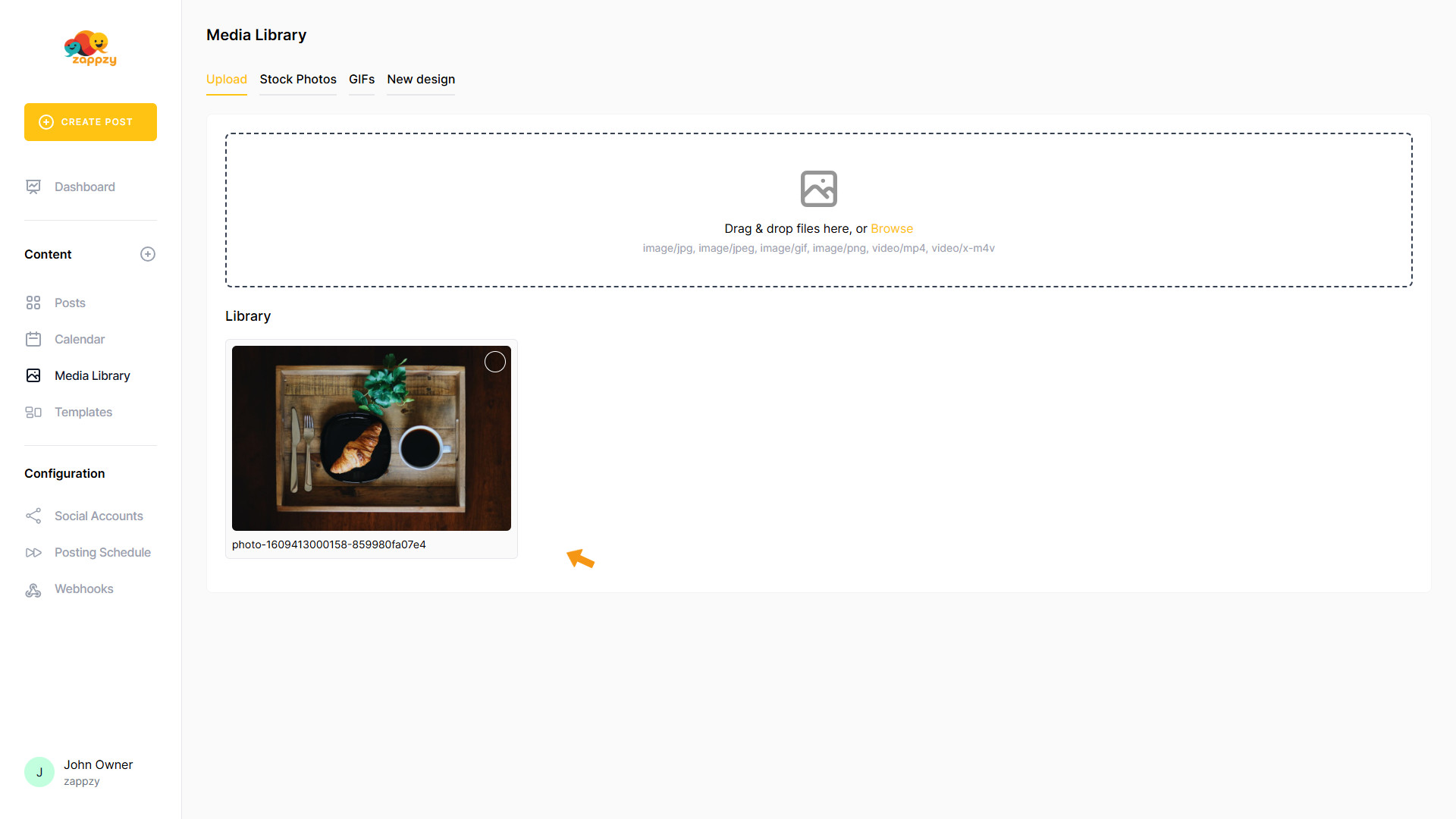
If you no longer need the image, you can delete it from your Media Library (Upload). For step-by-step instructions on how to delete an image, see the article Upload: Bring in your own images and videos—reuse them across your posts.