zappzy Support Center > Content > Create posts > Post timing: Pick Time, Post now, and Add to queue

Video or step-by-step guide with screenshots. Your choice. Same goal, different paths.
Step-by-step guide
Once you're logged in to zappzy, you'll see an orange CREATE POST button in the left menu. Click on it.
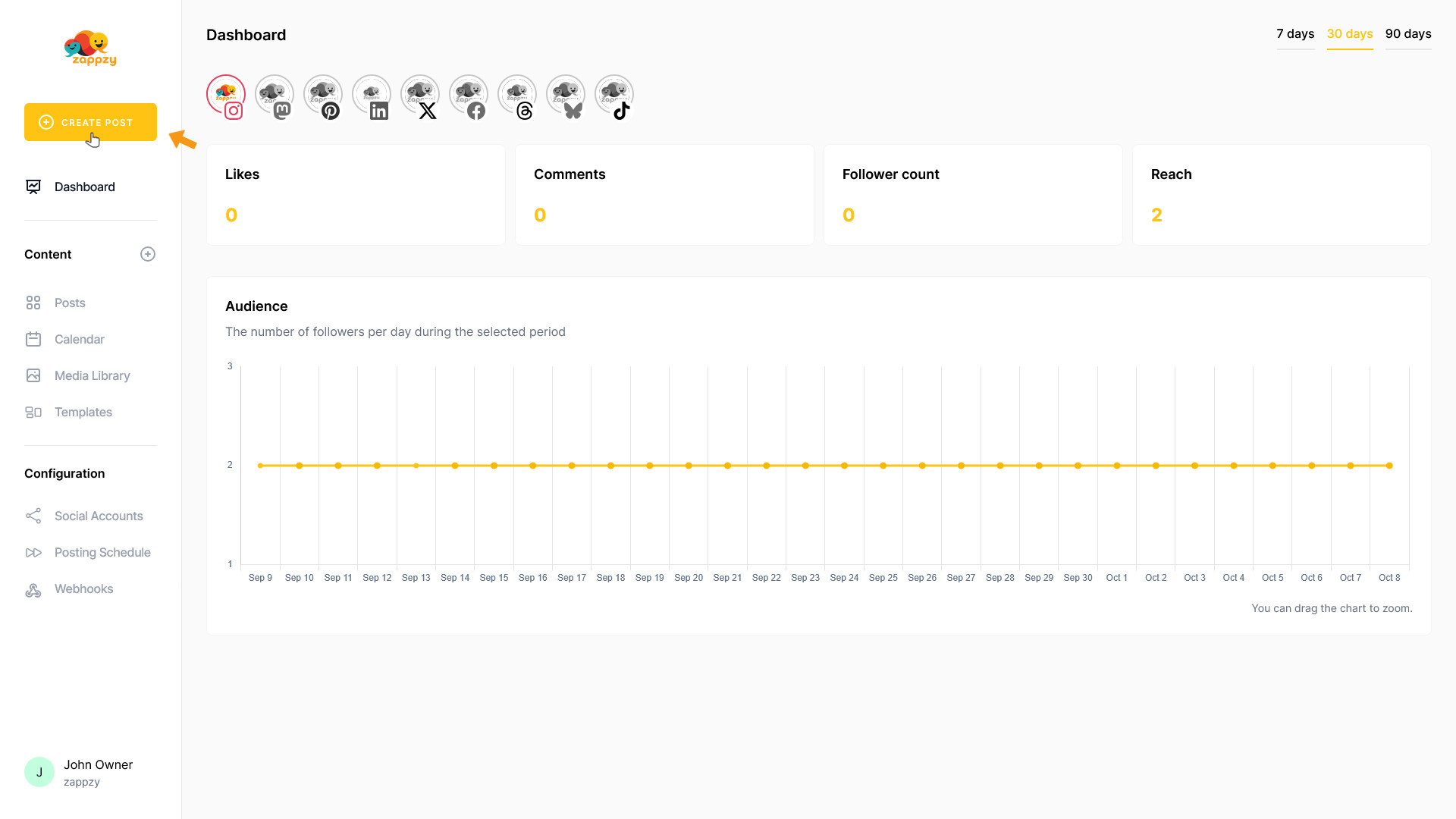
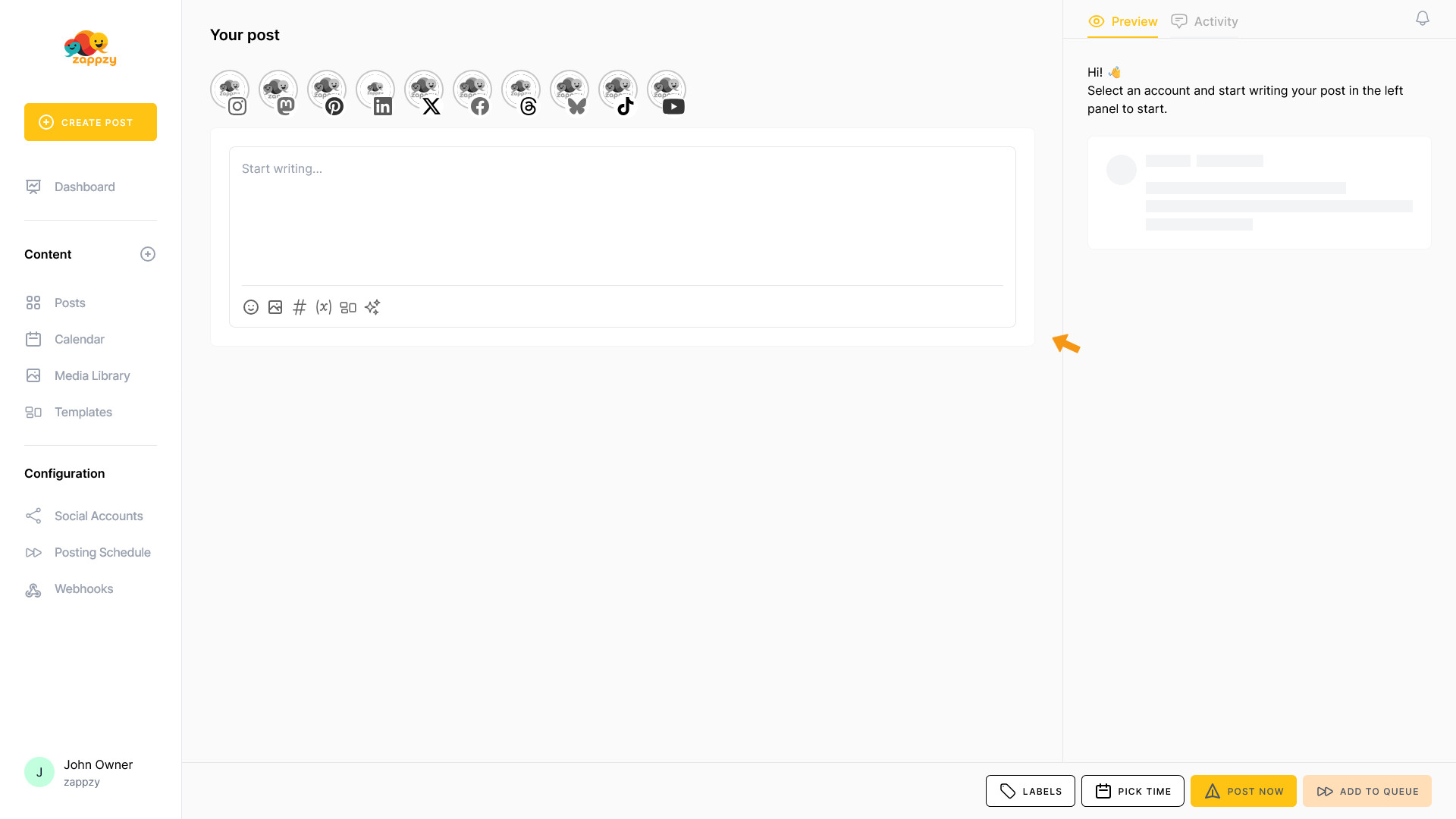
The Your post overview will appear on your main screen.
Note:We're focusing on post timing here, not post creation. For step-by-step guidance on creating a post, see the Create a post articles.
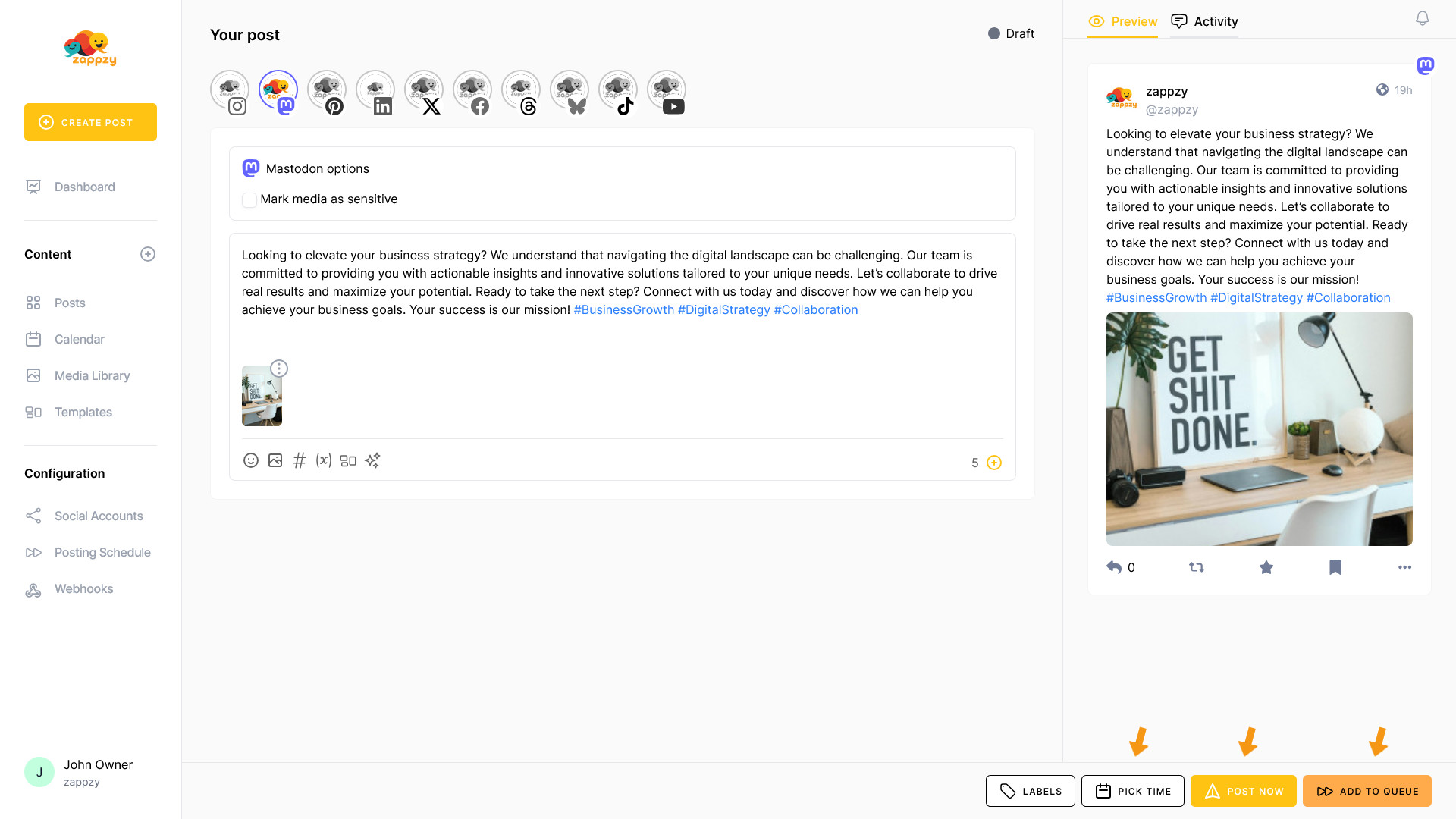
After creating your post, you need to decide when to publish it. You have three options: Pick Time, Post Now, or Add to Queue. Let's go through each one.
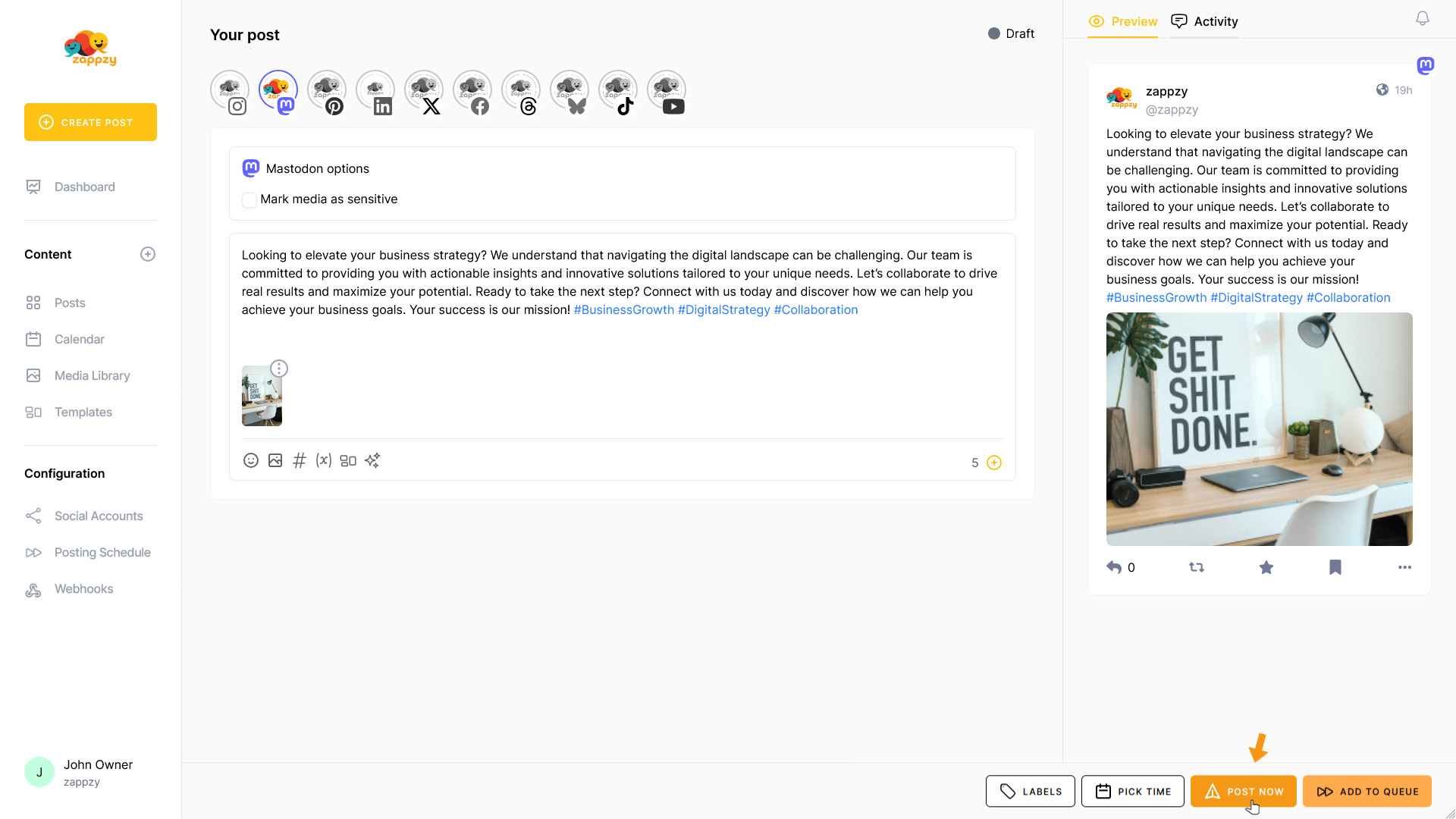
Post now
The most obvious option: Click POST NOW and your post goes live immediately on the corresponding social media platform. Your post will be visible to your followers within 10 seconds to 2 minutes, depending on the platform.
Use Post now when you want immediate engagement - perfect for real-time updates, breaking news, live events, or when you're responding to trending topics. It's also ideal when you're online and can monitor comments and reactions right away.
Add to Queue
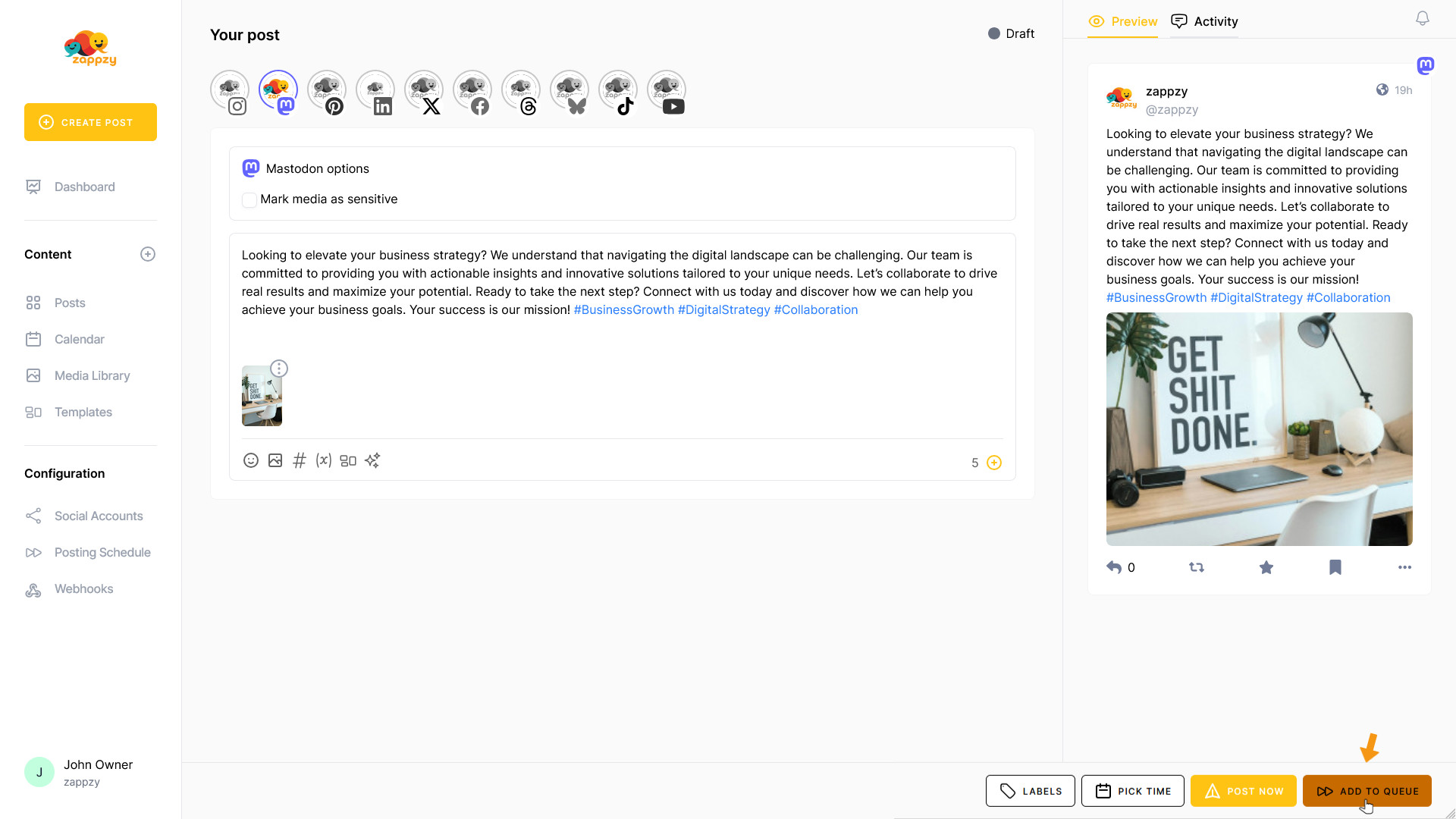
Add to Queue works with your Posting Schedule that you've set up (or can still set up - see article Posting Schedule: Set up automated posting times for your content).
When you click ADD TO QUEUE, you hand over your created post to this Posting Schedule and zappzy will automatically publish your post based on your planned timing.
Use Add to Queue when you have a Posting Schedule set up and want your post to go live at the next scheduled time automatically. It's that simple - your post joins the queue and gets published when your schedule says so.
Pick time
When you click PICK TIME, a calendar opens.
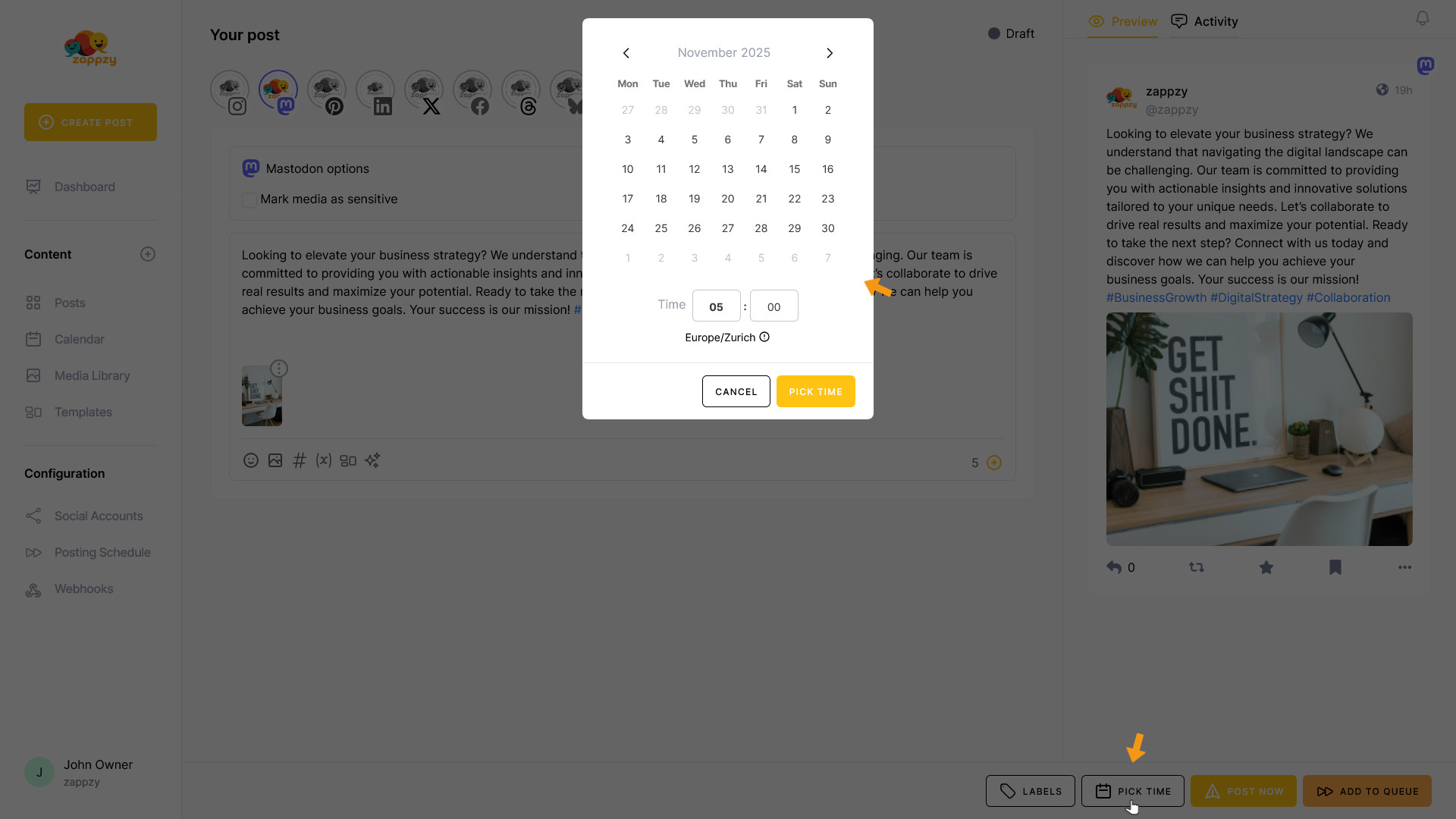
Here you can select the month and day as well as set the exact time when your post should be published. Click the PICK TIME button.
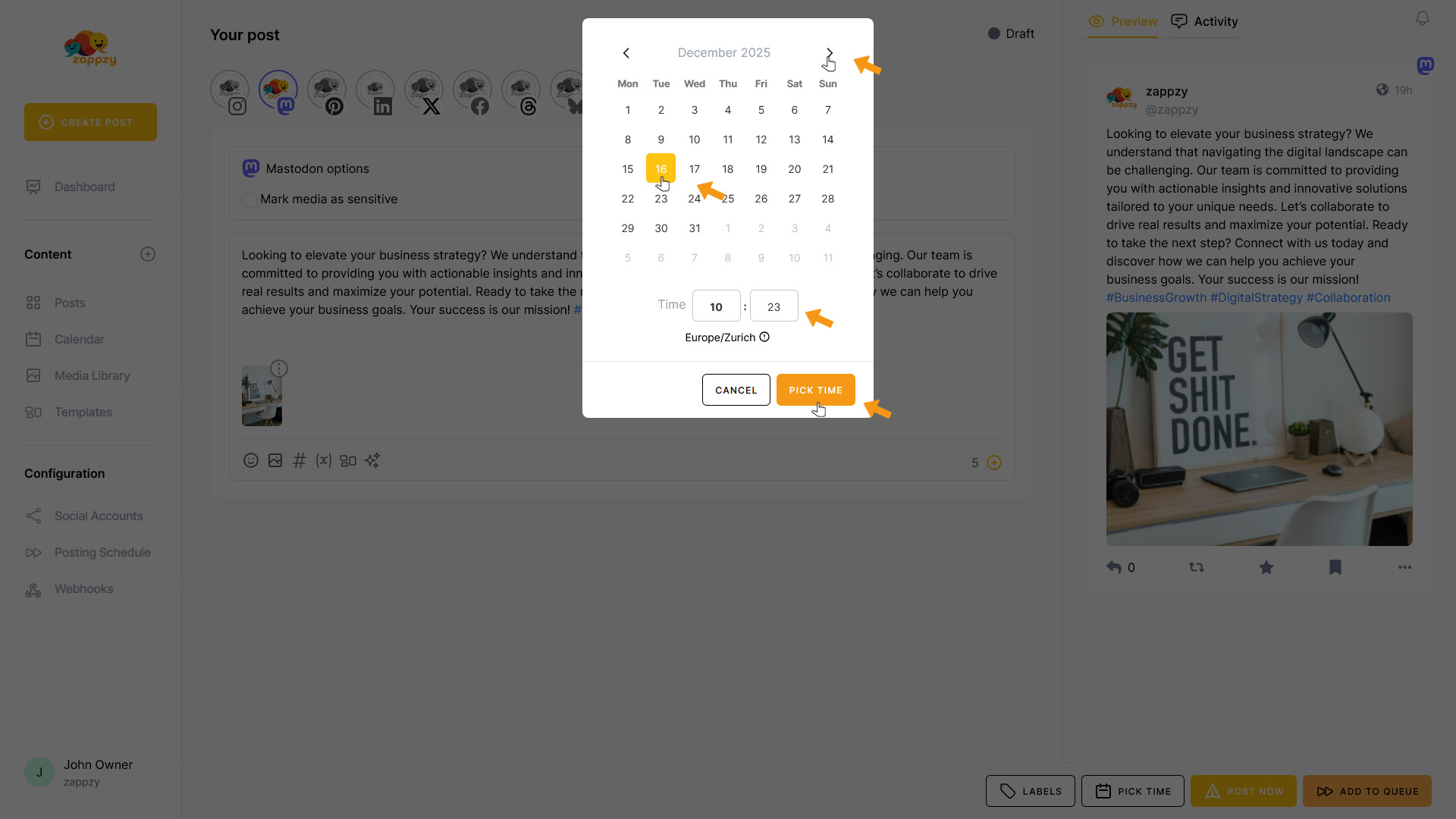
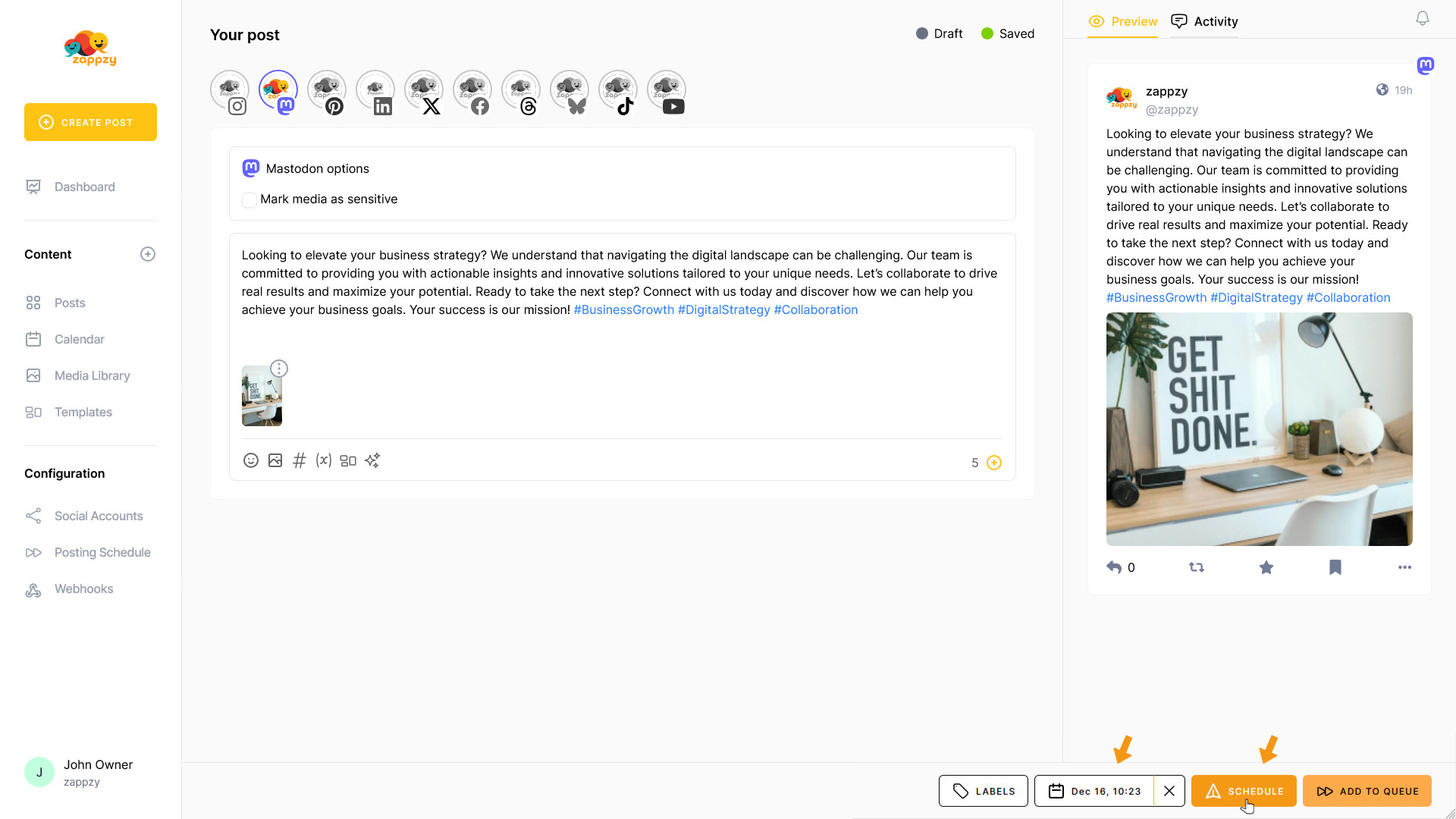
The calendar closes and you'll see your selected date/time displayed. Now click the SCHEDULE button next to it and your post is scheduled.
Use Pick time when you want to publish your post at a specific date and time that's different from your regular Posting Schedule. Perfect for time-sensitive content like event announcements, product launches, or holiday posts that need to go live at an exact moment.
Important: A post you've published with POST NOW can't be changed or stopped anymore!
With ADD TO QUEUE and PICK TIME options, you can always edit or delete your post via the Posts menu item - but only as long as it hasn't been published yet. How to edit a scheduled post is explained in the article Posts: See all posts in one list, filter by status, sort fast, and update on the spot.