zappzy Support Center > Content > Calendar: See every post at a glance, search in seconds, and edit with one click

Video or step-by-step guide with screenshots. Your choice. We made both simple.
Step-by-step guide
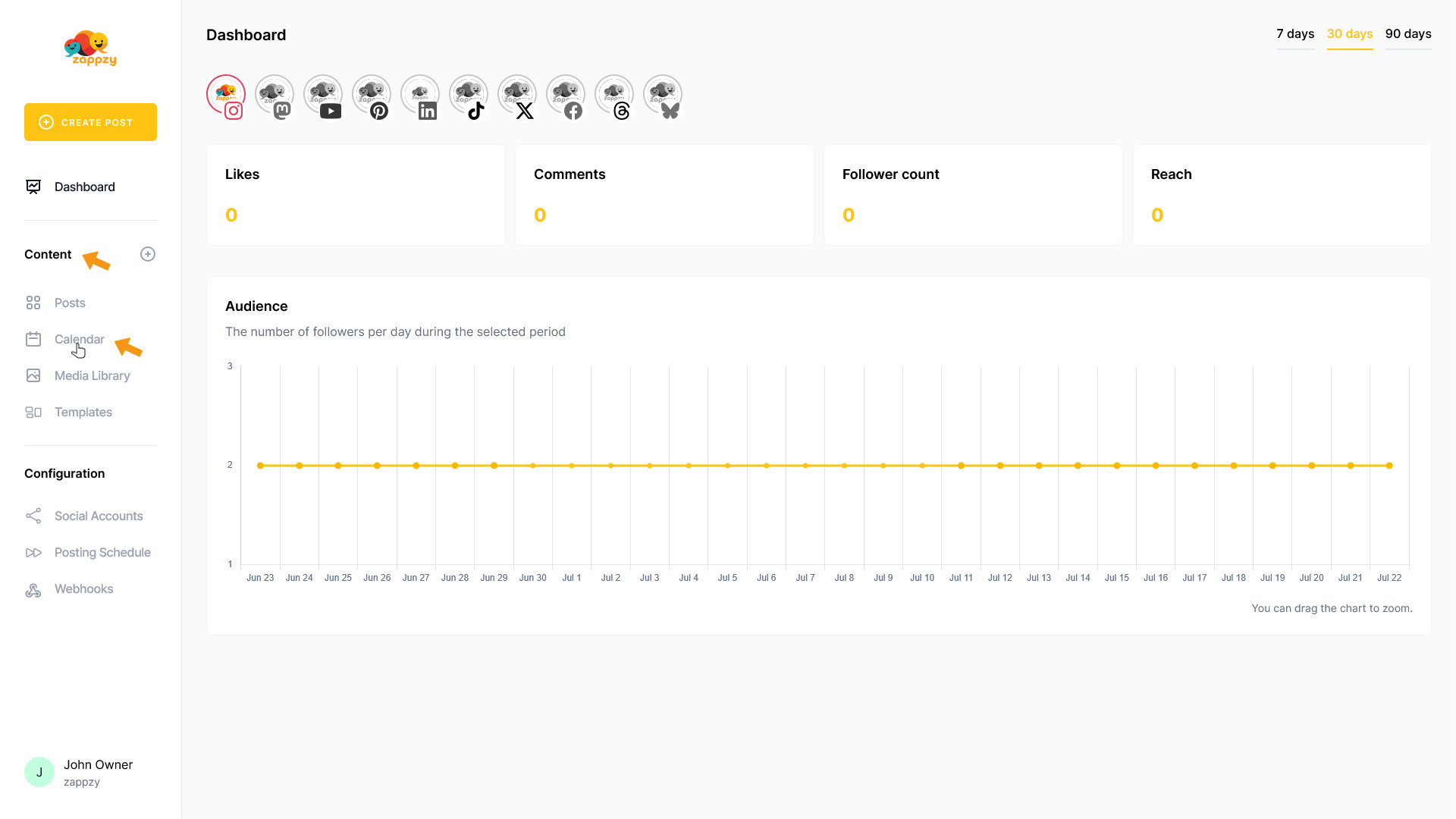
Once you're logged in to zappzy, you'll see the Content section. Click on Calendar below.
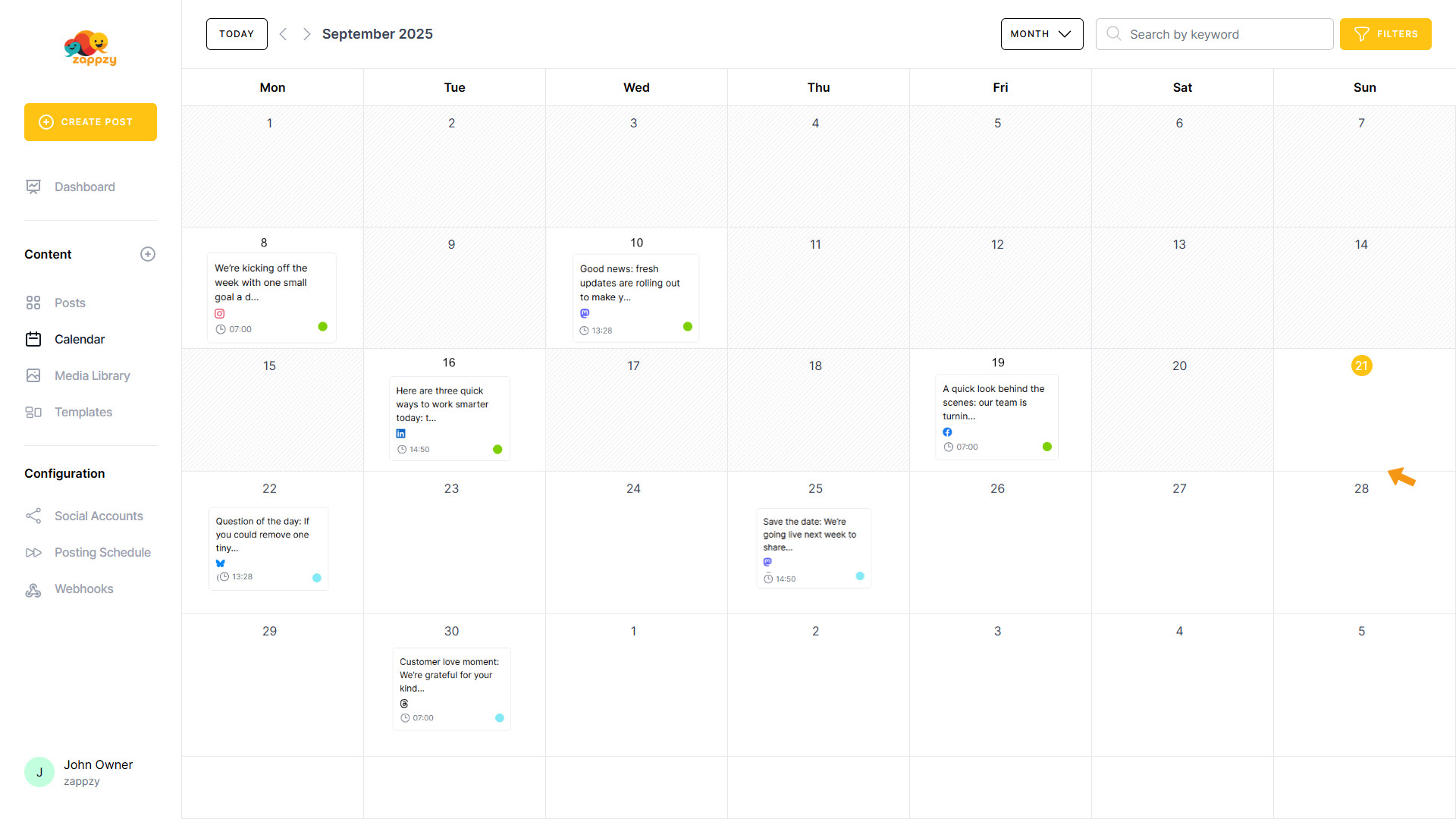
The Calendar overview will appear on your main screen.
The Calendar always displays the current month.
Within this view, a green dot marks posts that are already published, and a blue dot marks posts that are scheduled to publish later this month.
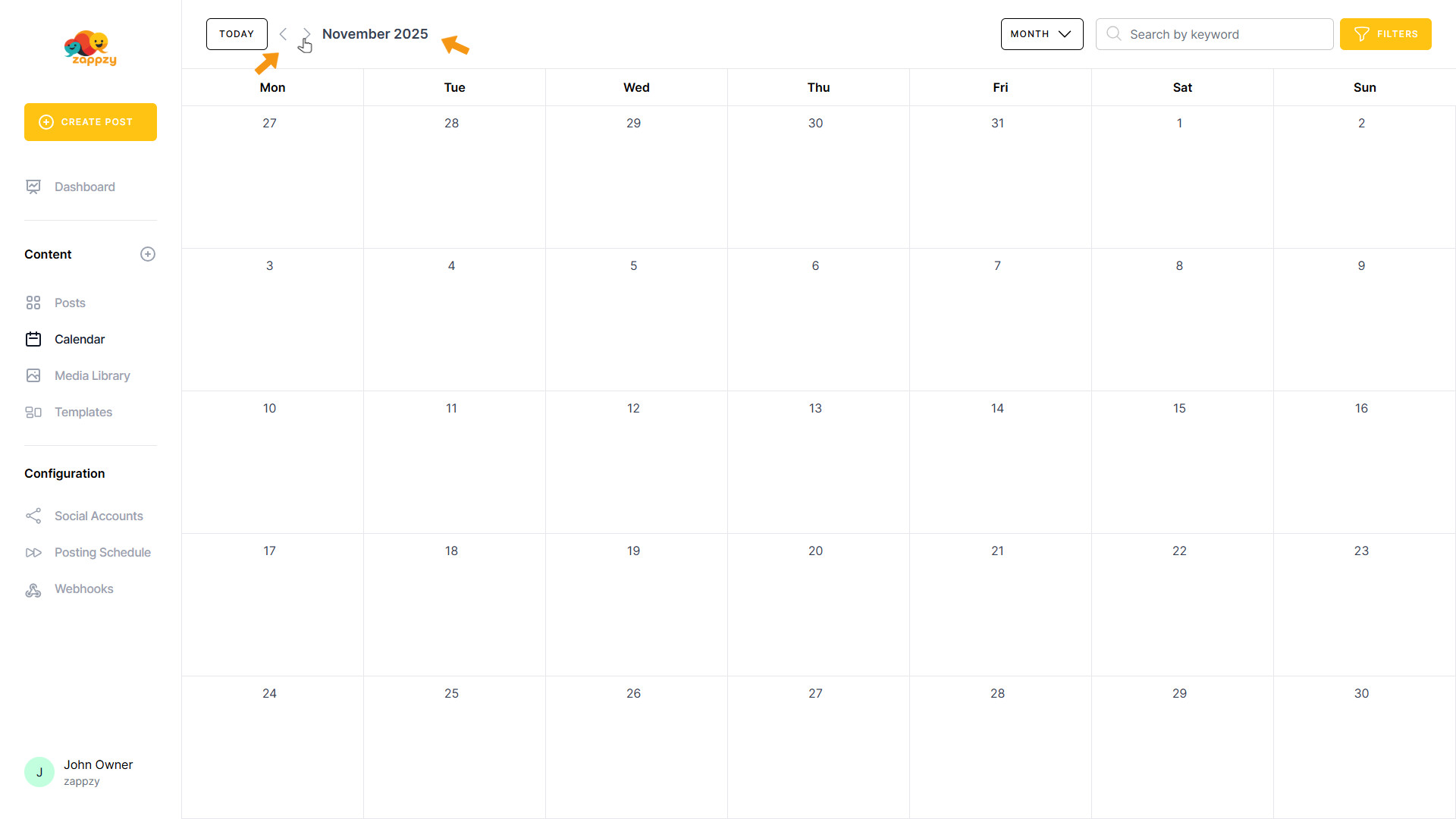
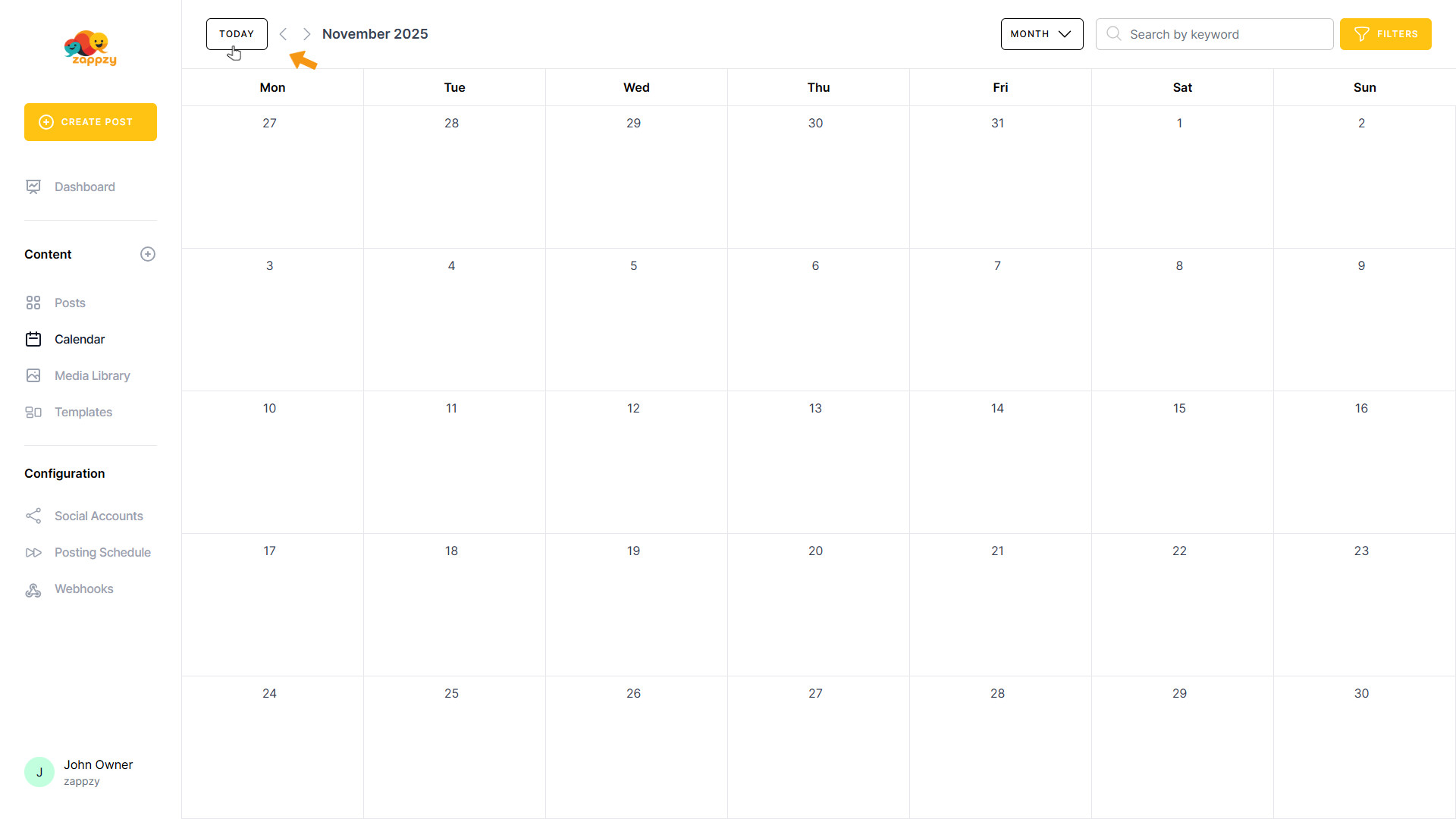
In the Calendar header, use the left and right arrows to switch between months or weeks when you’re in Week view—forward or back.
Click the TODAY button to jump back to the current month—or to the current week when you’re in Week view.
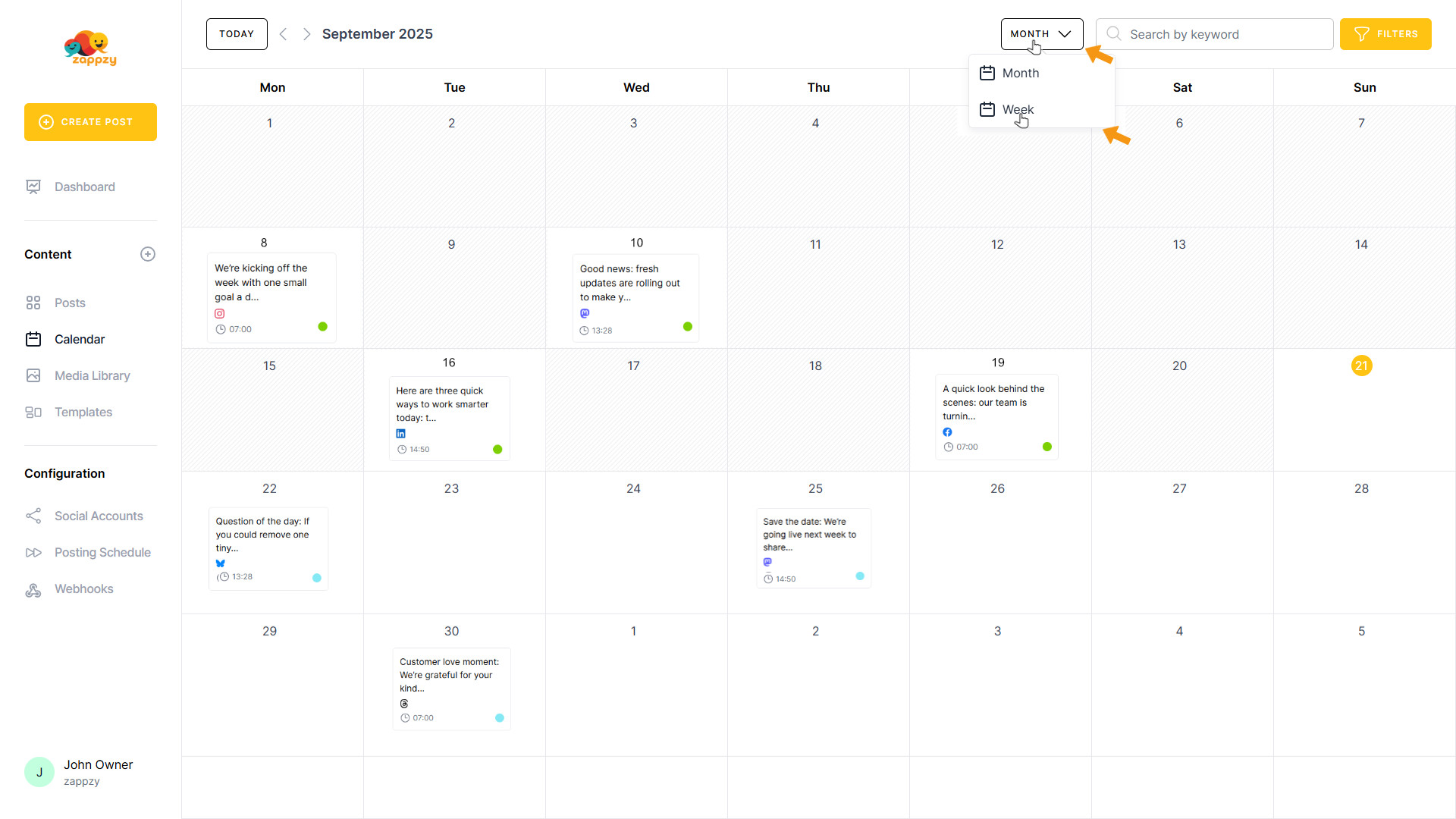
In the Calendar header, click the MONTH button and select Week to switch to the weekly view.
In Week view, click the same button and choose Month to switch back to the monthly view.
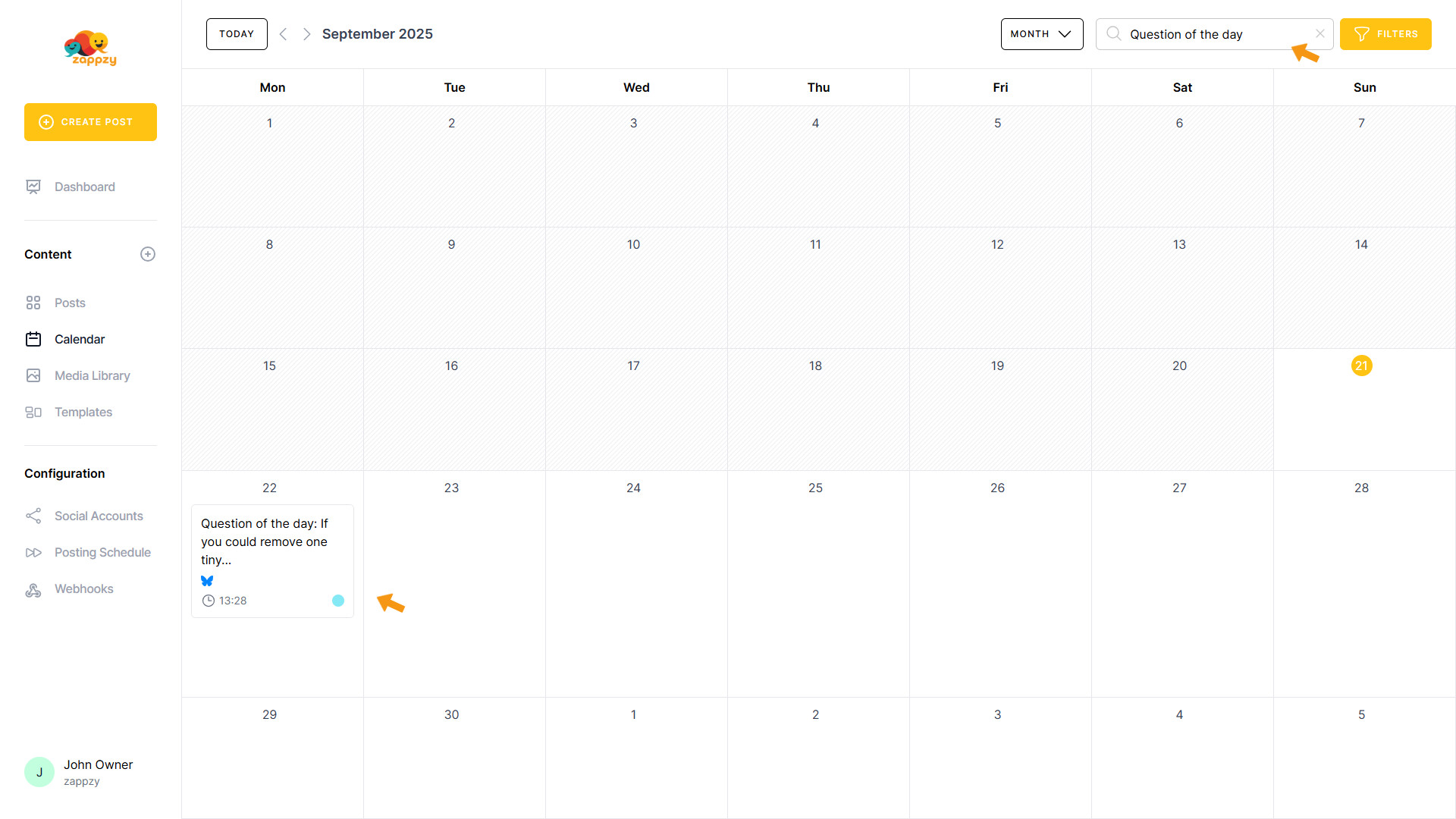
In the Calendar header, use the search field to find posts within the currently selected month or week. Type a few words from the post text, and zappzy will filter the view to show only the matching post(s) in that selection. This is especially helpful when you’re managing a very high volume of posts per day.
Important: Make sure you’ve selected the month or week where the post was published or is scheduled to publish.
You can also filter by labels and social accounts. Click the FILTERS button in the Calendar header, then check the box for the label(s) and/or social account(s) you want. zappzy will show all posts in the selected month or week that match—tagged with the chosen label or published/scheduled to the selected social account. This is especially helpful when you’re managing a very high volume of posts per day.
Important: Make sure you’ve selected the month or week where the post was published or is scheduled to publish.
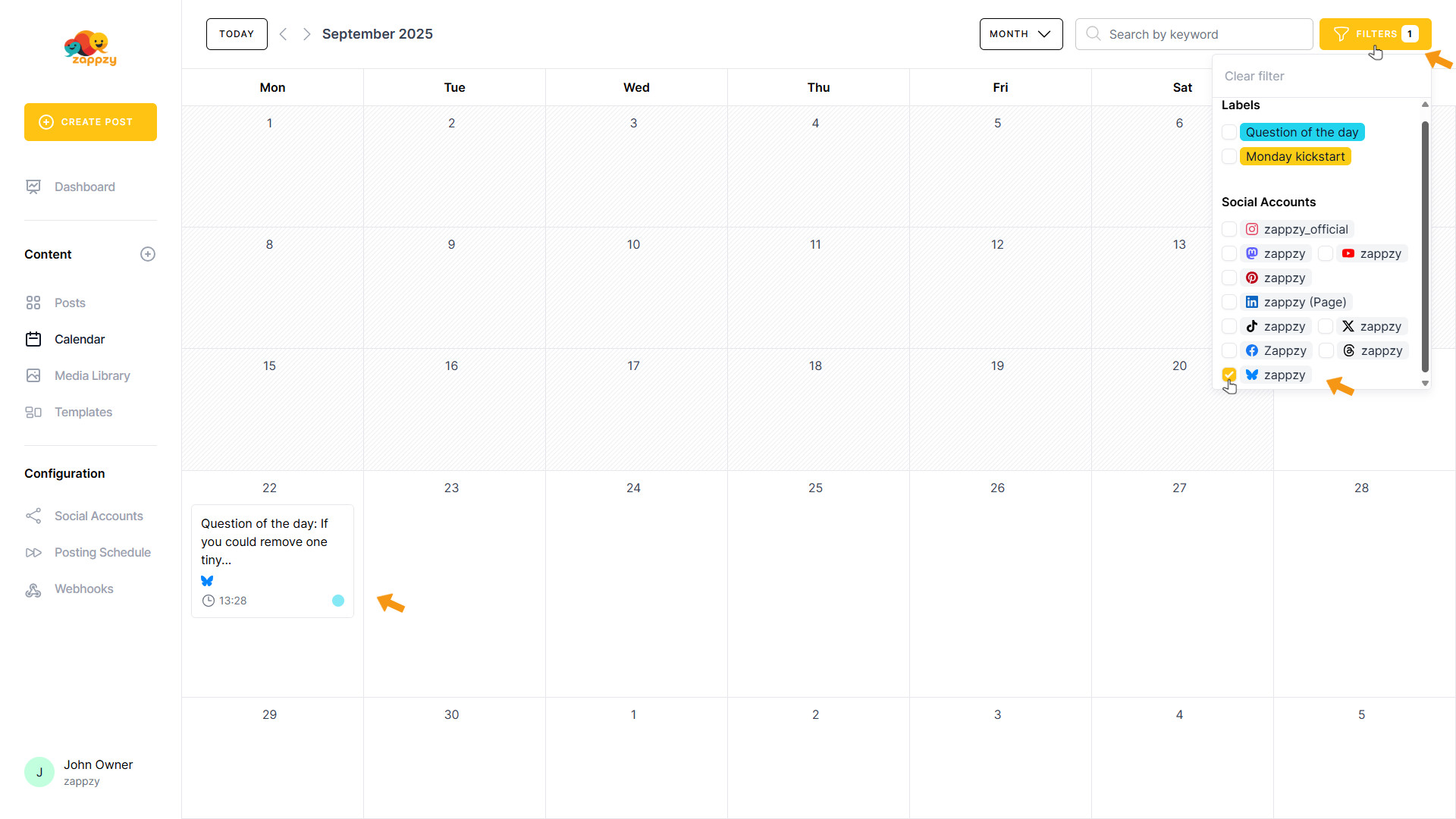
To clear the filter, simply click Clear filter.
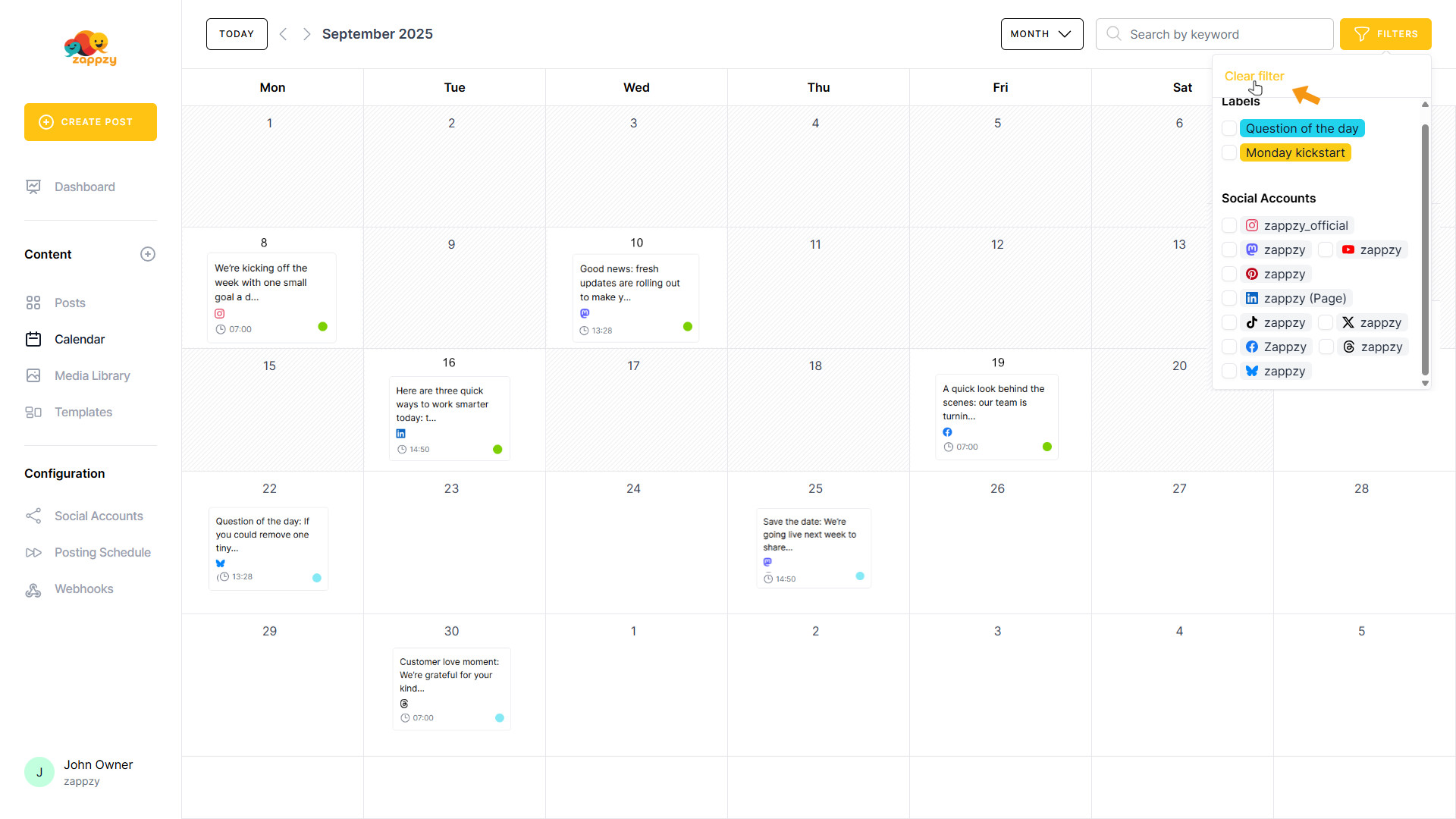
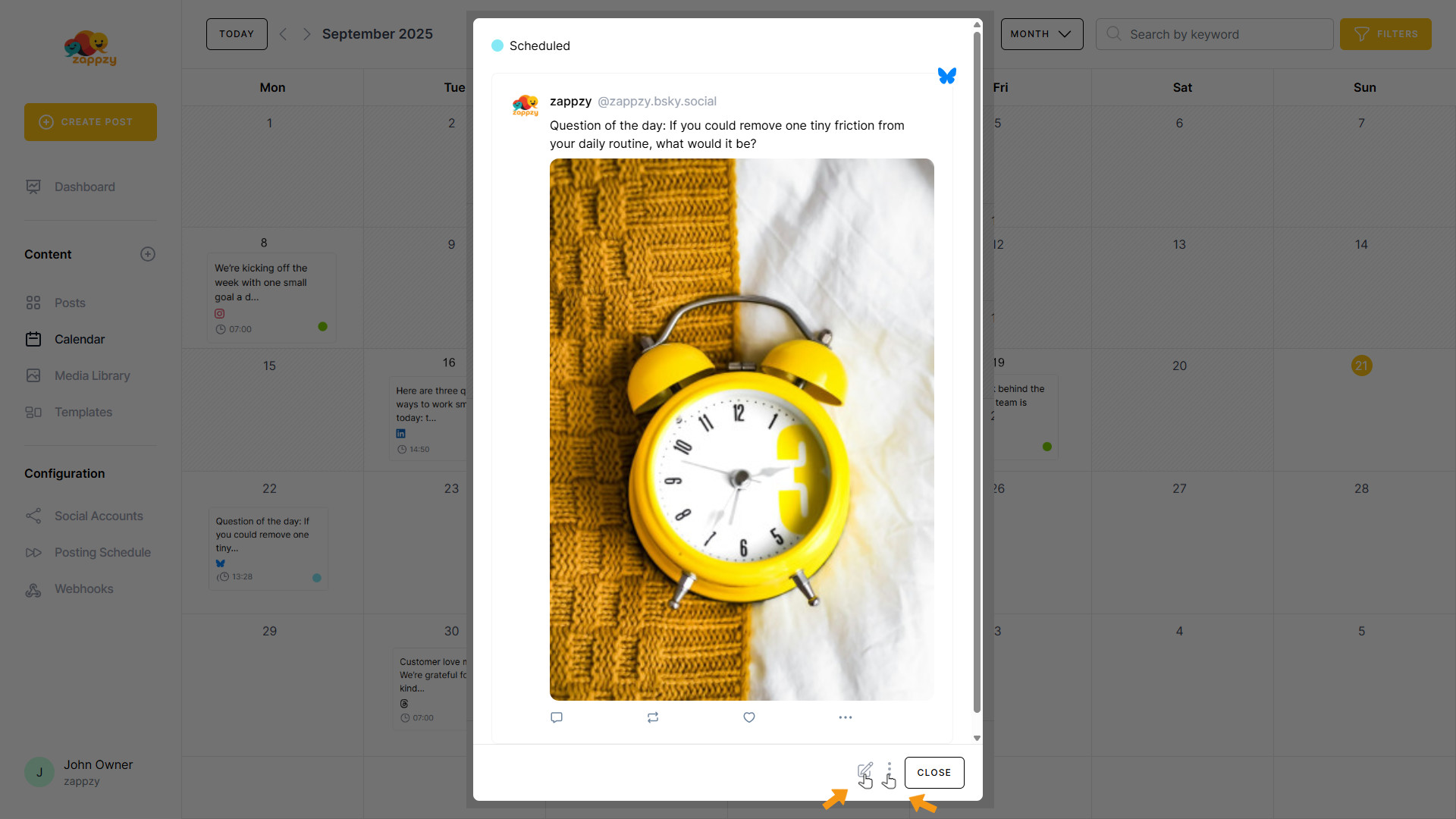
What do all these views, filters, and search tools do for you? Simple: they let you quickly find older posts—search, click the match, and open it. A popup opens with the full post, including a direct link that takes you to the post on the corresponding social platform. From the vertical three‑dots menu, you can duplicate the post, copy the UUID for API use, or delete the post.
Note: Once a post is published, it’s no longer editable.
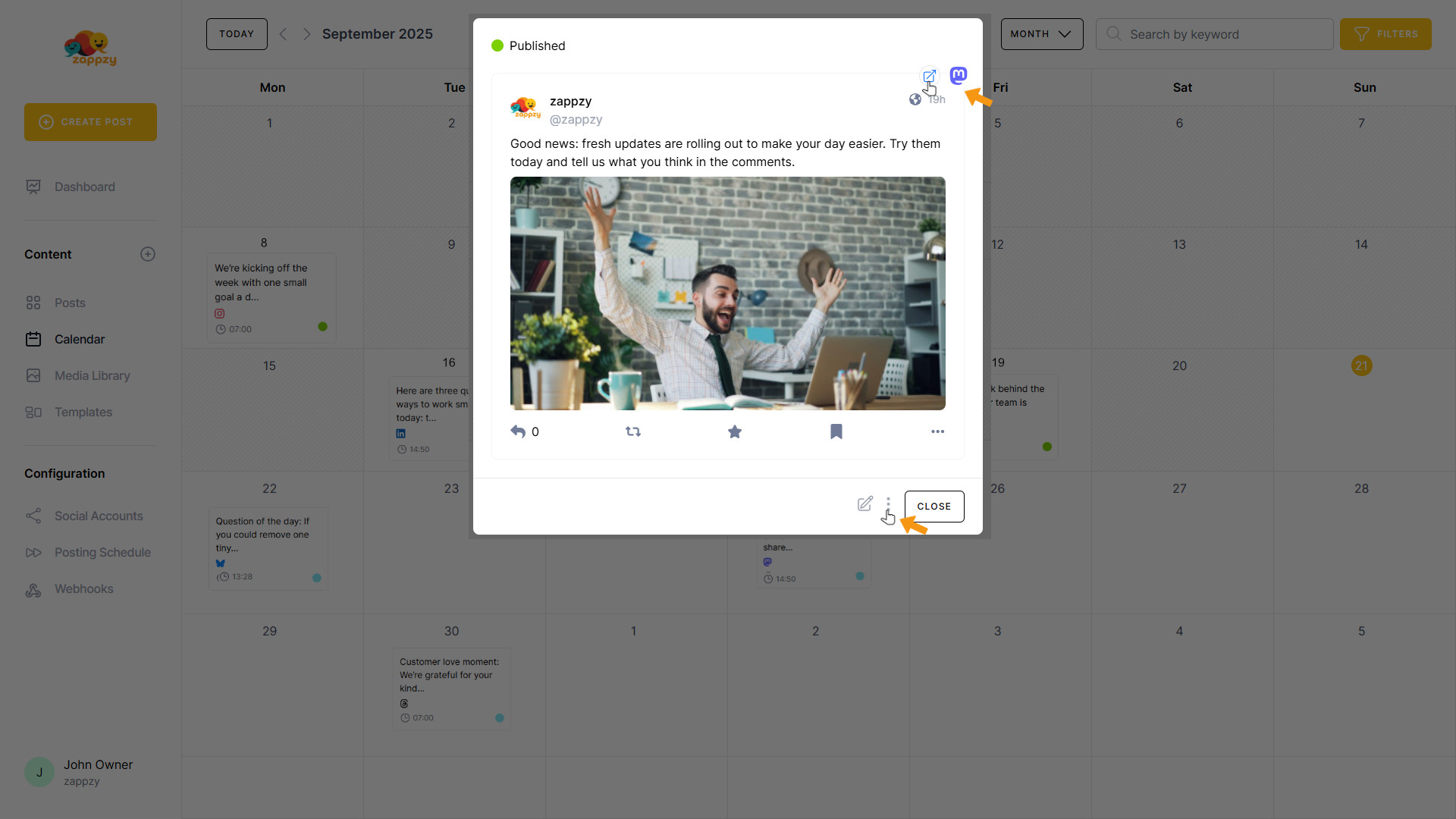
Even for posts that haven’t been published yet, this helps you stay organized and in control. For unpublished posts, the vertical three-dots menu is available too—Duplicate, Copy UUID, and Delete—so you can manage drafts with ease. Need to make changes? Click Edit to update the post before publishing.
For step-by-step guidance on creating a post, see the Create Posts articles.